> For the complete documentation index, see [llms.txt](https://docs.sprinthub.com/llms.txt). Markdown versions of documentation pages are available by appending `.md` to page URLs; this page is available as [Markdown](https://docs.sprinthub.com/en/topics/relate/automation-flows/common-questions/automation-flow-field-value-block.md).
# Automation Flow - Field Value Block
How to use the 'Field Value' block to perform advanced field checks within the Automation Flow.
## Introduction
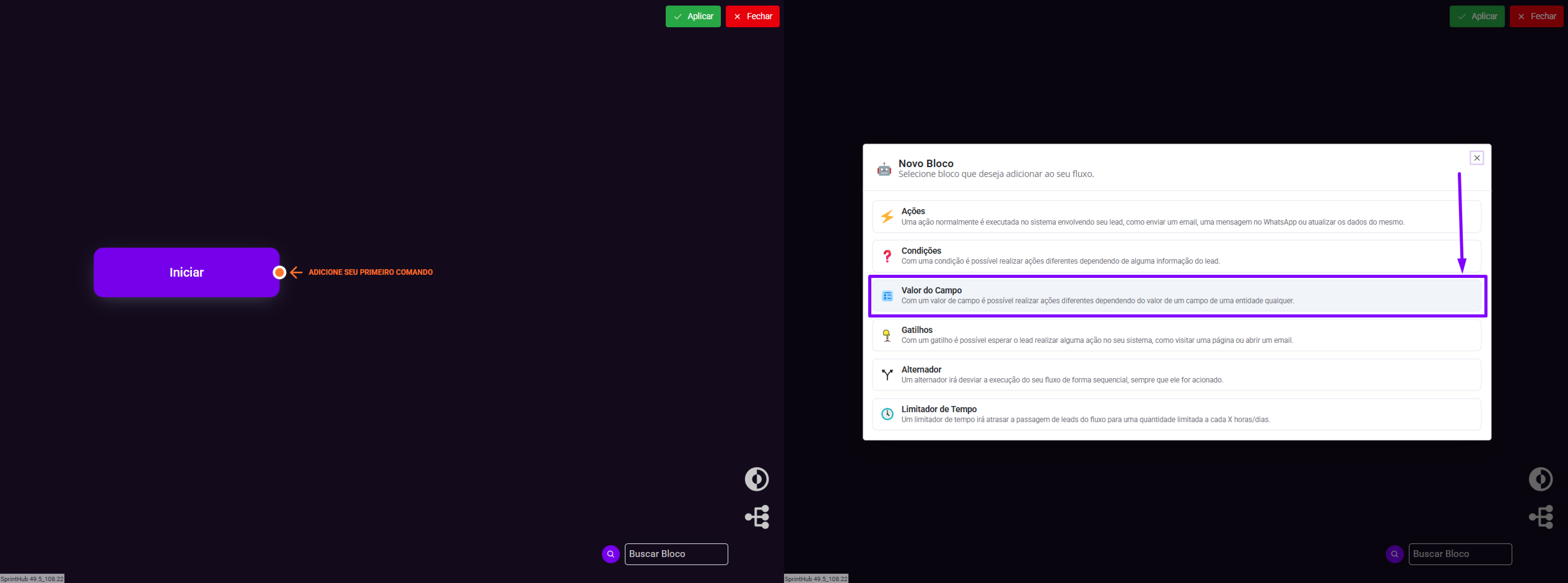
The block **Field Value** is available in the Automation Flow builder and is used to validate information and direct the flow of actions based on the fields of *Contact*, *Company*, *Opportunity* or *Task*.
Among the commonly used conditions, the following stand out: *Equal to*, *Different from*, *Is not empty*, *Greater than or equal to* and *Less than*. It is worth noting that some conditions are restricted to fields of type **Number**, as they involve quantitative evaluations.
{% hint style="info" %}
Due to the functionality of [**Automatic Selectors**](/en/topics/relate/automation-flows/automatic-selectors.md), fields of **Opportunity** and **Task** are available only in the Automation Flow, and are not accessible through the Chatbot.
{% endhint %}
Selecting the 'Field Value' block.
Example of the 'Field Value' block with defined conditions.
## Classifying contact based on the opportunity value
In this example, the opportunity value will be checked in a travel agency CRM, corresponding to the estimated price of the package quoted by the customer. The role of the Flow is to analyze the value of the *ticket* and define the next actions automatically.
According to the identified value:
* **Greater than or equal to R$ 20,000**: add the tag *High-Ticket* and create a follow-up task for the supervisor.
* **Greater than or equal to R$ 10,000**: add the tag *Medium-Ticket*.
* **Less than R$ 10,000**: add the tag *Low-Ticket*.
At the end, the contact will be automatically included in a newsletter segment, and will start receiving email campaigns.
It is important to note that the conditions are evaluated from top to bottom, and the first one that is met determines the path followed in the Automation Flow.
Automation Flow validating the opportunity value.
High-Ticket contact.
---
# Agent Instructions
This documentation is published with GitBook. GitBook is the documentation platform designed so that both humans and AI agents can read, navigate, and reason over technical content effectively. Learn more at gitbook.com.
## Querying This Documentation
If you need additional information that is not directly available in this page, you can query the documentation dynamically by asking a question.
Perform an HTTP GET request on the current page URL with the `ask` query parameter, and the optional `goal` query parameter:
```
GET https://docs.sprinthub.com/en/topics/relate/automation-flows/common-questions/automation-flow-field-value-block.md?ask=&goal=
```
`ask` is the immediate question: it should be specific, self-contained, and written in natural language.
`goal` is optional and describes the broader end goal you are ultimately trying to accomplish on behalf of the user. GitBook uses it to tailor the answer towards what is most useful for that goal.
The response will contain a direct answer to the question and relevant excerpts and sources from the documentation.
Use this mechanism when the answer is not explicitly present in the current page, you need clarification or additional context, or you want to retrieve related documentation sections.