> For the complete documentation index, see [llms.txt](https://docs.sprinthub.com/llms.txt). Markdown versions of documentation pages are available by appending `.md` to page URLs; this page is available as [Markdown](https://docs.sprinthub.com/en/topics/relate/public-calendar/public-calendar-automations-related-to-lead-attendance-or-no-show.md).
# Public Calendar - Automations related to lead attendance or no-show
SprintHub's Public Calendar allows advanced automations to manage lead attendance at meetings. Through these automations, you can track whether a lead attended, did not attend, or whether a meeting was canceled, and handle this information effectively.
{% hint style="info" %}
These options are available in SAC 360º, CRM, and Automation Flow. For this example, we will use the automation flow.
{% endhint %}
### Step-by-Step Guide to Configure Attendance Automations
#### Step 1: Access an automation flow
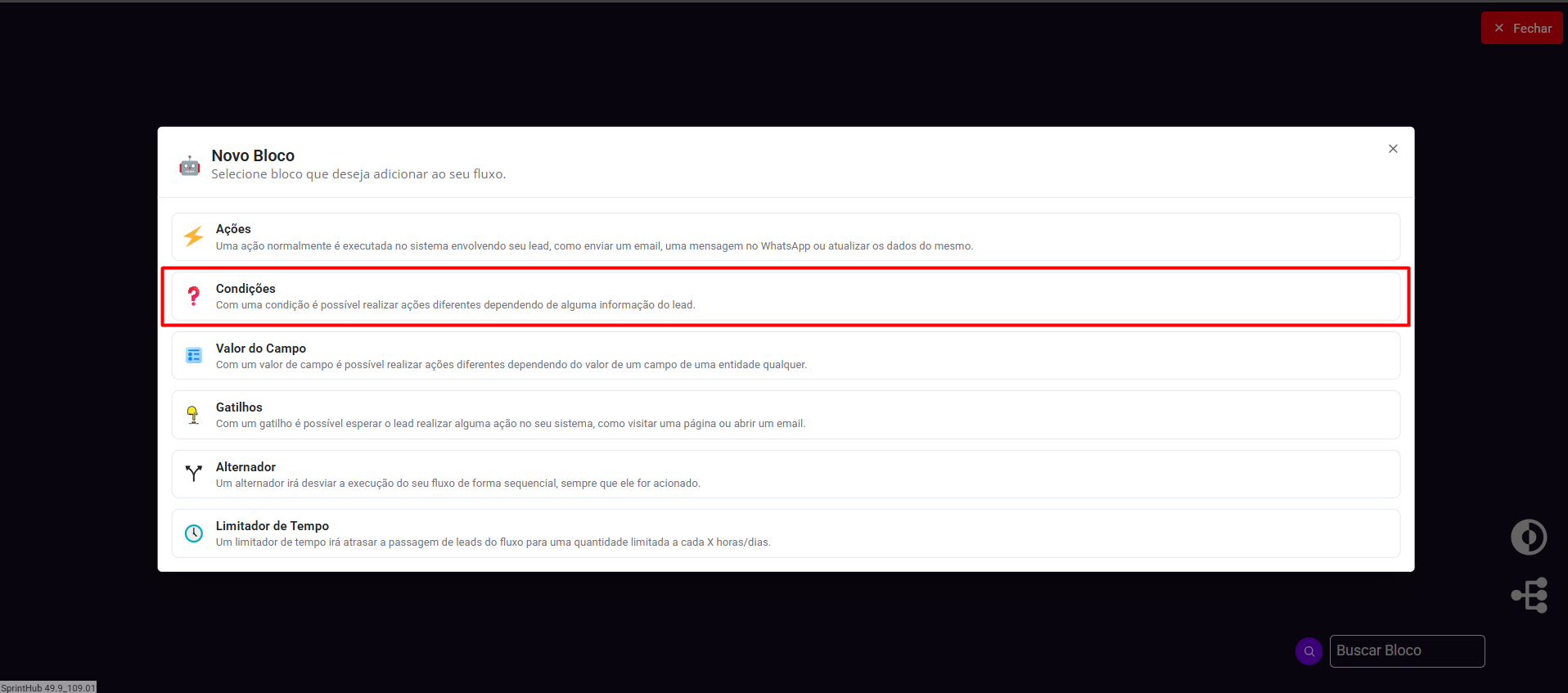
**Access the Editor**: Navigate to the SprintHub automations section and access the conditions editor.
**Add New Condition**: Click "New Filter" to create a new condition.
#### Step 2: Configure Attendance Conditions
In the conditions editor, you can create specific filters for different situations related to lead attendance. Here are some examples:
1. **Did the Lead Attend a Meeting?**
* **Setup**: Select the condition "Did the lead attend a meeting?" and configure the desired actions, such as sending a thank-you email or moving the lead to the next stage of the funnel.
2. **Did the Lead NOT Attend a Meeting?**
* **Setup**: Select the condition "Did the lead NOT attend a meeting?" and configure actions, such as sending a reminder email or moving the lead to a follow-up stage.
3. **Meeting Canceled for the Lead?**
* **Setup**: Select the condition "Was a meeting canceled for the lead?" and configure actions, such as rescheduling the meeting or sending a notification to the responsible person.
{% hint style="info" %}
For continuity in the explanation, let's separate each condition.
{% endhint %}
#### Step 3: Define Positive and Negative Actions
For each condition, you can define actions to be executed if the conditions are met (Positive) or not met (Negative).
* **Positive Actions**: These may include sending emails, CRM status updates, internal notifications, etc.
* **Negative Actions**: These may include resending invitations, reminders, escalation to other responsible parties, etc.
#### Practical Examples
* **Example 1**: If a lead attended a meeting, send a thank-you email and create a new opportunity for the lead in the sales funnel.
* **Example 2**: If a lead did not attend a meeting, send a reminder email with the option to reschedule.
* **Example 3**: If a meeting was canceled, notify the responsible person and offer the lead the option to reschedule on a new date.
#### Conclusion
SprintHub's Public Calendar automations allow you to efficiently manage lead attendance at meetings. By configuring specific conditions and actions, you can ensure that no lead is forgotten and that all opportunities are followed up properly.
***
**Note**: The images provided show visual examples of how to configure conditions in the SprintHub automations editor. Follow the visual steps together with the textual guide for precise and efficient setup.