> For the complete documentation index, see [llms.txt](https://docs.sprinthub.com/llms.txt). Markdown versions of documentation pages are available by appending `.md` to page URLs; this page is available as [Markdown](https://docs.sprinthub.com/en/topics/relate/email/email-marketing-analyzing-data.md).
# Email Marketing - Analyzing data
It is important to analyze email marketing data to assess campaign performance, understand recipient engagement, and identify areas for improvement.
To analyze the data from your email marketing, follow the step-by-step guide below:
Open your email marketing by clicking on the general menu, **Link** and then **Emails**.
When you open your Emails tab, you will see important data such as Email Name, category, sent and opened emails, as well as the creation date and status.
Hover over the eye icon 👁️ to **view** the **view the content** of the created email.
{% hint style="warning" %} It is worth noting that the email open rate metric can generate false positives, since some email clients automatically open messages, which may not necessarily reflect the recipient's interest.
{% endhint %}
To view the **data** from the email, click on the **name** desired email;
Observe the **information**;
* **Recent activity**: Recent activities in the email, for example, who created it or whether the email was edited and by whom.
* **Send test**: Click the button to send email tests before sending to the final recipient.
* **Statistics**: \ In queue: Messages that are queued to be sent.\ Sent: Messages that were sent.\ Unique opens: Total number of emails that were opened for the first time.\ Total opens: Total number of emails that were opened, including repeated opens.\ Clicks: Total number of clicks made on links in sent emails.\ Unsubscribes: Total number of unsubscribes made through sent emails.\ Failures: Emails that failed at the time of sending.\ Bounces: Emails that were sent, but could not be received by the recipient.\ Complaints: Emails that were reported by the recipient, such as spam, malware, etc.
Finally, just below the statistics you will be able to see the leads that had some interaction with the email;
### Filtering Leads by Statistics
Sending statistics allow you to track the performance of email campaigns, analyzing leads' interaction with sent messages. Below are the definitions of each category:
* **Sent:** Leads to whom the email was successfully sent.
* **Failures:** Leads where the email sending failed.
* **Opens:** Leads who opened the email at least once.
* **Clicks:** Leads who clicked on one or more links contained in the email.
* **Bounces:** Leads who failed to receive the email.
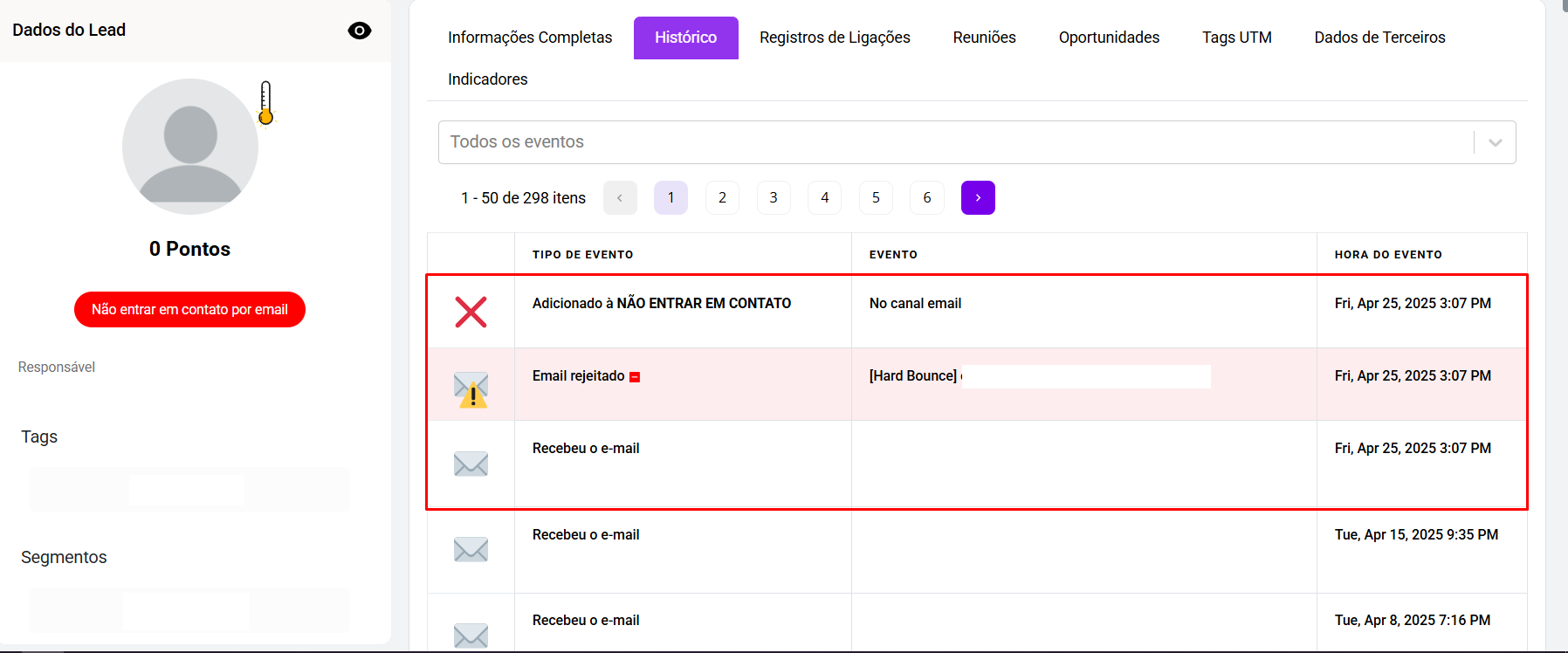
* **Hard Bounces:** Leads who permanently failed to receive the email, usually due to invalid or non-existent email addresses.
* **Soft Bounces:** Leads who temporarily failed to receive the email, which may be due to a full inbox or temporary issues on the destination server.
* **Complaints:** Leads who reported the email as spam.
* **Unsubscribes:** Leads who chose not to receive emails anymore.
***
:x: **DO NOT CONTACT BY EMAIL**
When cases of Hard Bounce, complaints, or unsubscribe requests are identified after sending the Email Marketing, the system itself marks the lead so that they no longer receive future communications.
***
**CONCLUSION:**
Sending emails through SprintHub offers a range of benefits that enhance communication and lead management. The platform provides a practical and efficient way to create, customize, and send bulk emails, with advanced segmentation and real-time monitoring features. In addition, the ability to filter leads by different types of statistics allows for a more assertive approach, ensuring a higher conversion and engagement rate. With these tools, it is possible to optimize campaigns, improve the customer experience, and drive business results in a strategic way.
---
# Agent Instructions
This documentation is published with GitBook. GitBook is the documentation platform designed so that both humans and AI agents can read, navigate, and reason over technical content effectively. Learn more at gitbook.com.
## Querying This Documentation
If you need additional information that is not directly available in this page, you can query the documentation dynamically by asking a question.
Perform an HTTP GET request on the current page URL with the `ask` query parameter, and the optional `goal` query parameter:
```
GET https://docs.sprinthub.com/en/topics/relate/email/email-marketing-analyzing-data.md?ask=&goal=
```
`ask` is the immediate question: it should be specific, self-contained, and written in natural language.
`goal` is optional and describes the broader end goal you are ultimately trying to accomplish on behalf of the user. GitBook uses it to tailor the answer towards what is most useful for that goal.
The response will contain a direct answer to the question and relevant excerpts and sources from the documentation.
Use this mechanism when the answer is not explicitly present in the current page, you need clarification or additional context, or you want to retrieve related documentation sections.