> For the complete documentation index, see [llms.txt](https://docs.sprinthub.com/llms.txt). Markdown versions of documentation pages are available by appending `.md` to page URLs; this page is available as [Markdown](https://docs.sprinthub.com/en/topics/relate/email/email-marketing.md).
# Email Marketing
Email marketing is a digital marketing strategy that involves sending emails to promote products, services, or relationships with leads and customers, aiming for engagement and sales.
To create your Marketing Email in SprintHub, click on Link > Emails;
Right after, click on "New".
You will configure your Email however you prefer;
Set a **Internal Name** to easily identify your email in the system, enter the **Subject** and add the **Segments** desired.
**Segments**: You will select the segment to which the email will be sent.
*It is important to remember that the Email will not be sent automatically as soon as you create it. You need to trigger its sending manually.*
Configure the tracking of your marketing email and enable Meta's conversions API if you prefer.
**Advanced**;
**1**- Sender name of the email. If left blank, the system default will be used.
**2**- Sender email address. If left blank, the system default will be used.
**3**- Email address to which the lead's reply will be sent. Leave blank if you want to use the sender's same address.
**4**- For each email sent to a lead, it will send a blind copy of it to this address.
**5**- If the lead has an owner, it will make the sender data (name and address) be the owner's data.
**6**- Attached files cannot be tracked.
After finishing your email setup click on '**Open Builder**'.
You can create and customize your marketing email however you wish; we provide a complete builder with many tools.
{% hint style="danger" %} **Be careful to avoid leaving blank spaces.**
{% endhint %}
After creating your marketing email, on the main page, you can track the performance of your emails, seeing how many were sent, how many were opened and what their status is, as well as being able to send **test email**;
To send a test email, click on the email you want to send;
Then click on '**Send test**';
Type the address you want to send the email to and click on 'Send';
{% hint style="info" %}
*When sending the test email, some functions may not work like **tokens**, **images** etc., however when sending the email effectively, they will go to the lead correctly.*\
*This functionality is for confirming the protocol that the email is reaching the inbox or spam.*
{% endhint %}
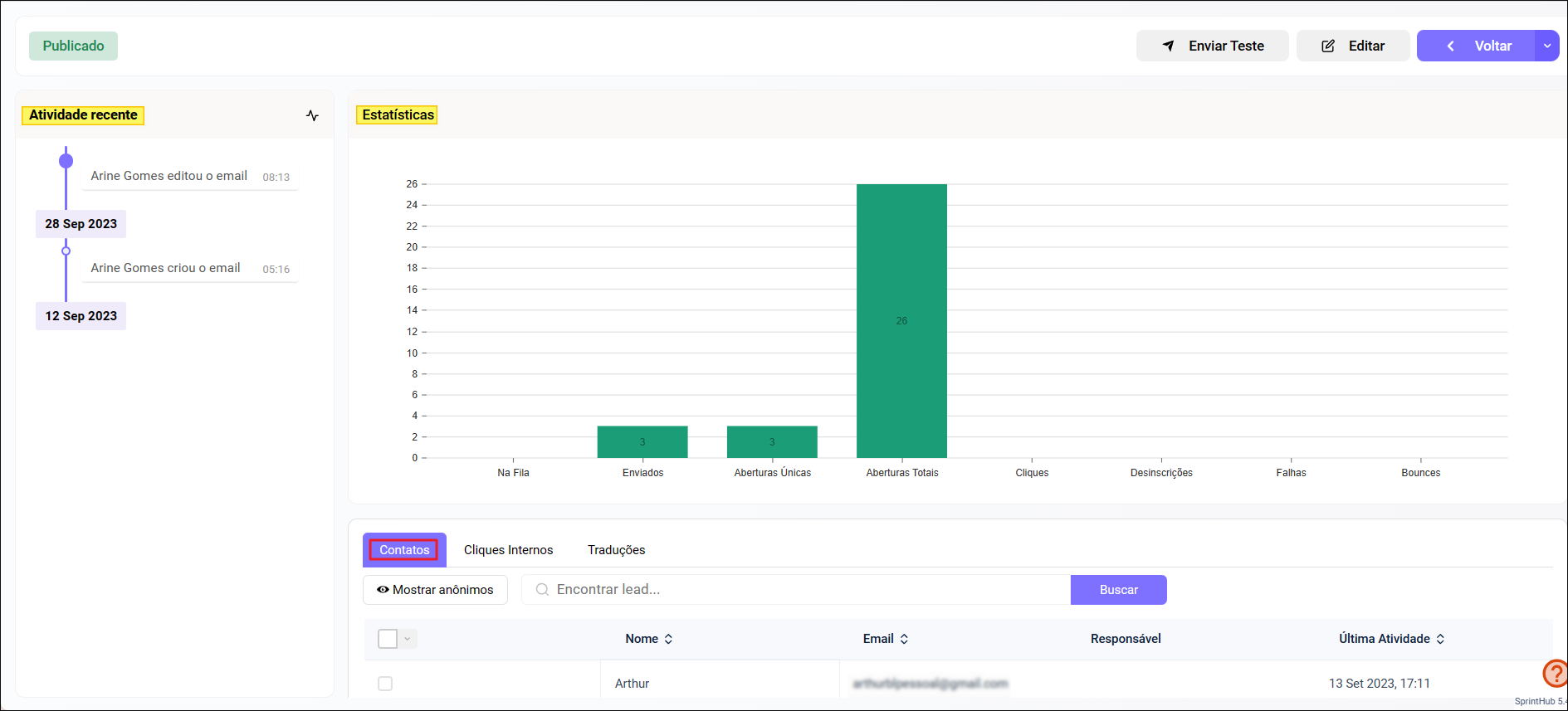
That done, you will be able to see the **statistics** statistics of the email by clicking on it;
You will have access to the **Recent Activities**, **Statistics with charts**, and the **contacts** who opened your email.
See a simple example of the marketing email builder;
{% @arcade/embed flowId="gXWwdiKDDBj7dxtnqYLn" url="" %}
### To send your Marketing Email, you can use the "Message Queue" and "Automation Flows" functions. These tools allow you to optimize your campaigns effectively.
#### Message Queue
* **Description**: Allows scheduling the sending of bulk emails to your segment all at once.
* **When to use**: Ideal for one-off campaigns, such as promotions or announcements, with the option to schedule the date and time of sending.
#### Automation Flows
* **Description**: Consists of a sequence of emails sent automatically based on users' actions or behaviors.
* **When to use**: Perfect for lead nurturing, re-engagement, and onboarding. For example, you can set up a series of emails that will be sent when a user signs up for your list.
By combining these two functions, you can maximize the impact of your Marketing Email strategies.
For more information, see the articles below:
{% content-ref url="/pages/430a797159546371edd1e2fbb2a4fe8a2e3ddca4" %}
[Segments](/en/topics/relate/segments.md)
{% endcontent-ref %}
{% content-ref url="/pages/435bb0c69d52523629958f8190587b36a83eba12" %}
[Message Queue](/en/topics/relate/message-queue.md)
{% endcontent-ref %}
{% content-ref url="/pages/53e48903145b2bdcb01df7ca5241fce6f8b1af5b" %}
[Automation Flow - Creating Marketing Automation for Email and WhatsApp Cadence](/en/topics/relate/automation-flows/tutorial-videos/automation-flow-creating-marketing-automation-for-email-and-whatsapp-cadence.md)
{% endcontent-ref %}
---
# Agent Instructions
This documentation is published with GitBook. GitBook is the documentation platform designed so that both humans and AI agents can read, navigate, and reason over technical content effectively. Learn more at gitbook.com.
## Querying This Documentation
If you need additional information that is not directly available in this page, you can query the documentation dynamically by asking a question.
Perform an HTTP GET request on the current page URL with the `ask` query parameter, and the optional `goal` query parameter:
```
GET https://docs.sprinthub.com/en/topics/relate/email/email-marketing.md?ask=&goal=
```
`ask` is the immediate question: it should be specific, self-contained, and written in natural language.
`goal` is optional and describes the broader end goal you are ultimately trying to accomplish on behalf of the user. GitBook uses it to tailor the answer towards what is most useful for that goal.
The response will contain a direct answer to the question and relevant excerpts and sources from the documentation.
Use this mechanism when the answer is not explicitly present in the current page, you need clarification or additional context, or you want to retrieve related documentation sections.