> For the complete documentation index, see [llms.txt](https://docs.sprinthub.com/llms.txt). Markdown versions of documentation pages are available by appending `.md` to page URLs; this page is available as [Markdown](https://docs.sprinthub.com/en/topics/convert/tracked-files/tracked-files-how-to-create-and-edit.md).
# Tracked Files - How to create and edit
Create files that will be distributed to your Leads through downloads, forms, emails, and landing pages.
Sprinthub offers a robust solution for creating and managing tracked files, allowing you to monitor who is accessing your content and how they are interacting with it. In this guide, we'll show you how to set up and use Sprinthub's Tracked Files feature, providing a detailed overview of each step of the process, from creation to analyzing usage statistics.
### Step by Step
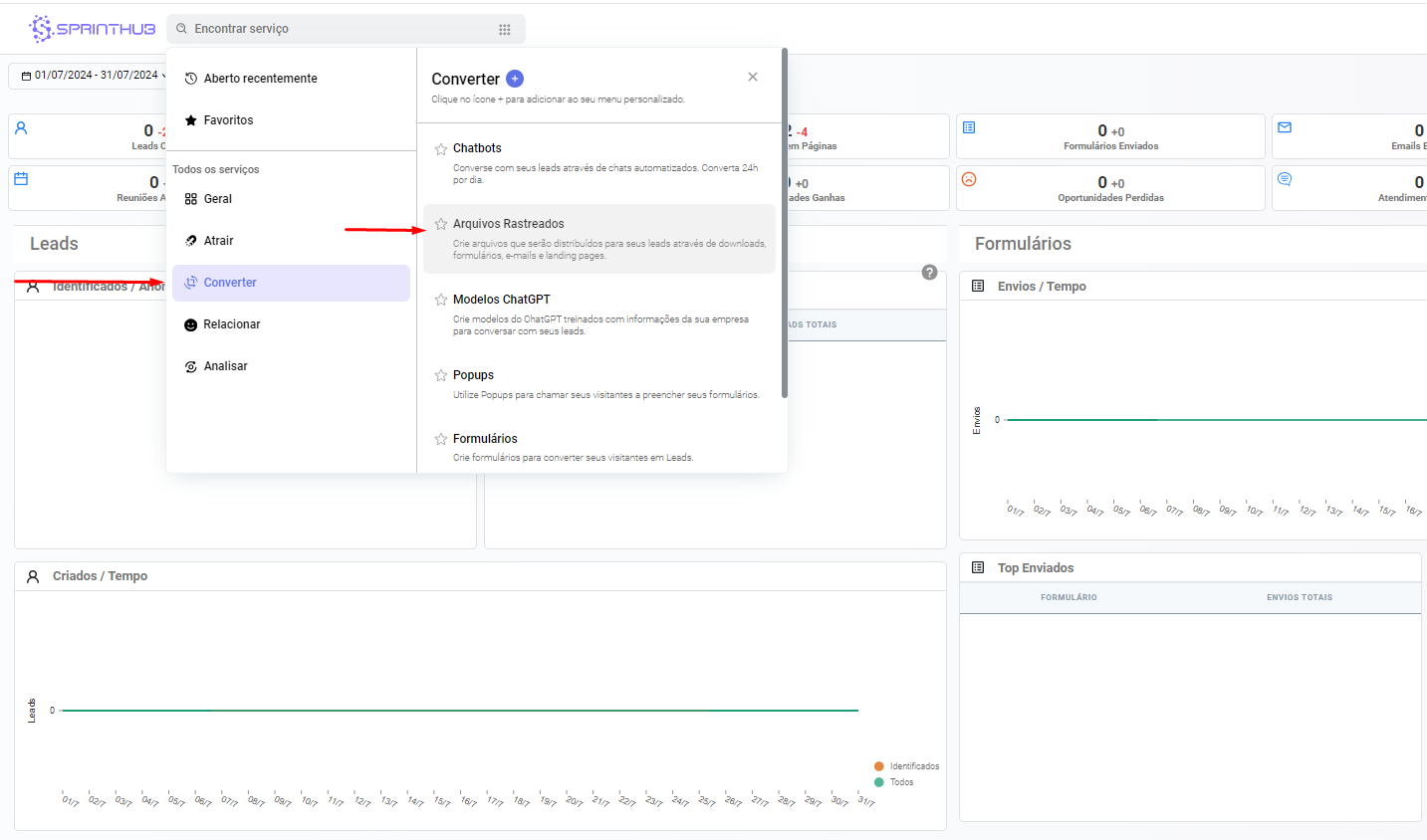
1. **Access the Conversion Tool**
* Navigate to the option **Convert** in the main menu.
* Select **Tracked Files**.
2. **Start a New Tracked File**
* Click on **New** to create a new tracked file.
3. **Set Up the Tracked File**
* **Name and Description**: Give your tracked file a clear, informative name and description.
* **Language**: Use the language option to create equivalent files in different languages. For example, if you create a "X" file in Portuguese and a "Y" version in English, check the language option to associate them. This will ensure the recipient sees the file version corresponding to the language configured on their device.
* **File Upload**: Upload files from your computer or the cloud. You can add various file types, such as e-books and images.
4. **Keep the Tracked File Active**
* Make sure the Published option is set to “Yes” so that the tracked file remains active.
5. **Publishing and Data Access**
* After publishing, you will have access to complete data on the performance of your tracked files.
* Follow the **Recent Activity** to see who edited the file, along with the date and time of the modification.
**Tracked URL and Statistics**
* **Tracked URL**: This is the URL you should send to your leads so they can download the file and be tracked.
{% hint style="info" %}
Tracked leads will initially appear as anonymous leads, containing IP address, location, and device information. To identify them, you will need these leads to fill out a form, for example, and then click the tracked file link containing an identification parameter.\
Learn the step-by-step process for this in the following article: [**Automation Flow - Sending Tracked Files**](https://docs.sprinthub.com/topicos/relacionar/fluxos-de-automacao/duvidas-comuns/fluxo-de-automacao-enviando-arquivos-rastreados)
{% endhint %}
* **Access to Statistics**: After publishing, you can view detailed statistics for your files, recent activities, and information about the leads who accessed your link. The statistics can be viewed by date, offering a clear view of user engagement and interaction with your files.
**Conclusion**
With these steps, you can easily create and manage tracked files in Sprinthub, optimizing your control over access to and engagement with your content. If you need additional assistance, our support team is always available to help.
---
# Agent Instructions
This documentation is published with GitBook. GitBook is the documentation platform designed so that both humans and AI agents can read, navigate, and reason over technical content effectively. Learn more at gitbook.com.
## Querying This Documentation
If you need additional information that is not directly available in this page, you can query the documentation dynamically by asking a question.
Perform an HTTP GET request on the current page URL with the `ask` query parameter, and the optional `goal` query parameter:
```
GET https://docs.sprinthub.com/en/topics/convert/tracked-files/tracked-files-how-to-create-and-edit.md?ask=&goal=
```
`ask` is the immediate question: it should be specific, self-contained, and written in natural language.
`goal` is optional and describes the broader end goal you are ultimately trying to accomplish on behalf of the user. GitBook uses it to tailor the answer towards what is most useful for that goal.
The response will contain a direct answer to the question and relevant excerpts and sources from the documentation.
Use this mechanism when the answer is not explicitly present in the current page, you need clarification or additional context, or you want to retrieve related documentation sections.