> For the complete documentation index, see [llms.txt](https://docs.sprinthub.com/llms.txt). Markdown versions of documentation pages are available by appending `.md` to page URLs; this page is available as [Markdown](https://docs.sprinthub.com/en/topics/artificial-intelligence/ai-landing-pages/ai-landing-pages-configuring-forms.md).
# AI Landing Pages - Configuring Forms
Step-by-step guide to managing forms in AI Landing Pages.
## Checking the Forms tab
When generating a page using the [automatic creation](/en/topics/artificial-intelligence/ai-landing-pages/ai-landing-pages-creating-the-first-page.md), or importing code, the forms present will be automatically detected and displayed in the **Forms**. In this section, all forms found on the landing page are listed.
When a lead fills out one of these forms, it will be automatically created on the platform with the provided data or, if it already exists, it will be identified. From then on, all actions configured in the form will be executed, and the lead will start being tracked. This means that whenever they access a tracked link or a Sprinthub landing page (or any page with the tracking script installed), their activity will be recorded in the lead history, as well as the [UTM tags](/en/topics/system-settings/tracking/tracking-utm-tag.md) of the URL.
Builder home page.
Forms tab.
## Form Settings
In addition to renaming the form to make organization and use in automations easier, it is possible to adjust the following properties:
* **Kiosk Mode**: always creates a new lead, even if one already exists. Ideal when the form is filled out by a third party. **This mode prevents lead tracking**.
* **Overwrite information on repeated submissions**: replaces the lead's data with the most recent data whenever the form is resubmitted.
* **Automatically resolve conflicts**: automatically resolves data conflicts between leads (cannot be used together with the blocking option).
* **Block submission when a conflict occurs**: prevents the form from being submitted and displays a warning if there is a lead with the same unique fields.
* **Redirect on submit**: after submission, directs the lead to a specific page (e.g., “Thank you for your contact!”).
* **Unarchive lead on submit**: automatically unarchives archived leads that fill out the form.
Form Settings.
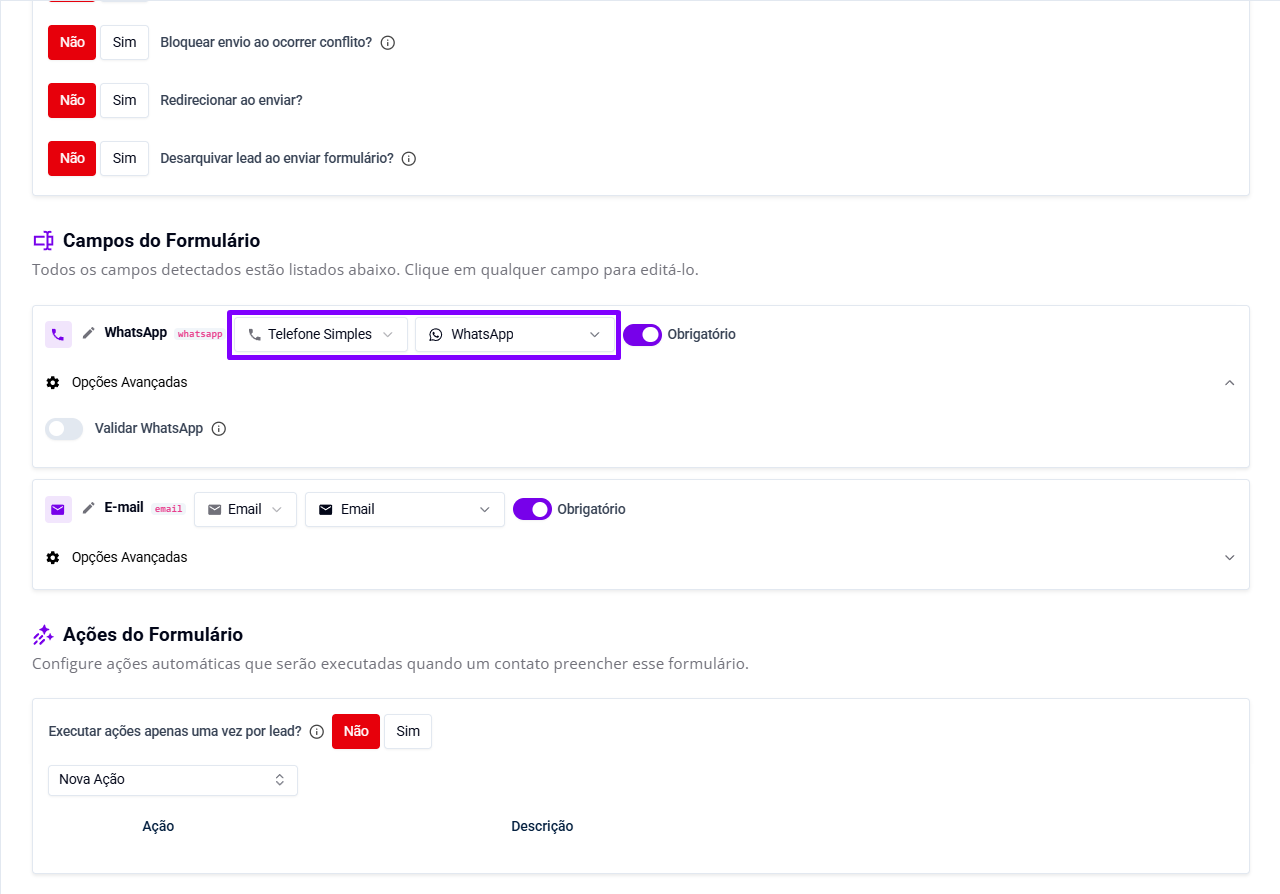
## Form Fields
The fields are identified automatically. For each one, it is necessary to define:
* the expected value type (text, number, phone, email, selector, etc.);
* the lead field that will be filled.
It is also possible to configure additional options according to the field type and define whether it will be required upon submission.
Form Fields.
## Form Actions
It is possible to define which actions will be executed for the lead, such as: creating opportunities in a CRM pipeline, generating tasks, changing permissions or assignees, sending WhatsApp messages, among others.
If you want these actions to be executed only once per lead, even on repeated form submissions, check the option **“Execute actions only once per lead?”** how **Yes**.
Form Actions.
## Saving and publishing changes
After modifying the settings, go back to the **Preview** and click on **Save Changes** to record the changes.
Remember: saving the landing page **does not** automatically updates the published version. For customers to see the changes, it is necessary to click **Publish Version** on the landing page editing page. Always check which version is currently published.
Saving changes.
Landing page editing page.
---
# Agent Instructions
This documentation is published with GitBook. GitBook is the documentation platform designed so that both humans and AI agents can read, navigate, and reason over technical content effectively. Learn more at gitbook.com.
## Querying This Documentation
If you need additional information that is not directly available in this page, you can query the documentation dynamically by asking a question.
Perform an HTTP GET request on the current page URL with the `ask` query parameter, and the optional `goal` query parameter:
```
GET https://docs.sprinthub.com/en/topics/artificial-intelligence/ai-landing-pages/ai-landing-pages-configuring-forms.md?ask=&goal=
```
`ask` is the immediate question: it should be specific, self-contained, and written in natural language.
`goal` is optional and describes the broader end goal you are ultimately trying to accomplish on behalf of the user. GitBook uses it to tailor the answer towards what is most useful for that goal.
The response will contain a direct answer to the question and relevant excerpts and sources from the documentation.
Use this mechanism when the answer is not explicitly present in the current page, you need clarification or additional context, or you want to retrieve related documentation sections.