> For the complete documentation index, see [llms.txt](https://docs.sprinthub.com/llms.txt). Markdown versions of documentation pages are available by appending `.md` to page URLs; this page is available as [Markdown](https://docs.sprinthub.com/en/topics/attract/landing-page/landing-page-google-tag-manager/landing-page-how-to-add-the-google-tag-to-your-landing-page-in-sprinthub.md).
# Landing Page - How to Add the Google Tag to Your Landing Page in SprintHub
Adding the Google tag to your landing page is a simple but essential process for tracking your site's performance and collecting valuable data. Follow the steps below to configure the tag correctly using an HTML container in SprintHub.
{% embed url="" %}
#### Step 1: Copying the Google Tag Code
First, you need to obtain the Google tag code that you want to add to your site. This can be done through Google Tag Manager or directly from other Google platforms. In the example provided, the code is as follows:
However, in our LP, we will do the opposite process:
**In the header:**
```html
```
#### In the Body:
```html
```
#### Step 2: Accessing the Landing Page Editor in SprintHub
**Access the Editor**: Navigate to your landing page editor in SprintHub.
To insert the code, you need to click on custom code, where it will be made available for adding your own codes to the page:
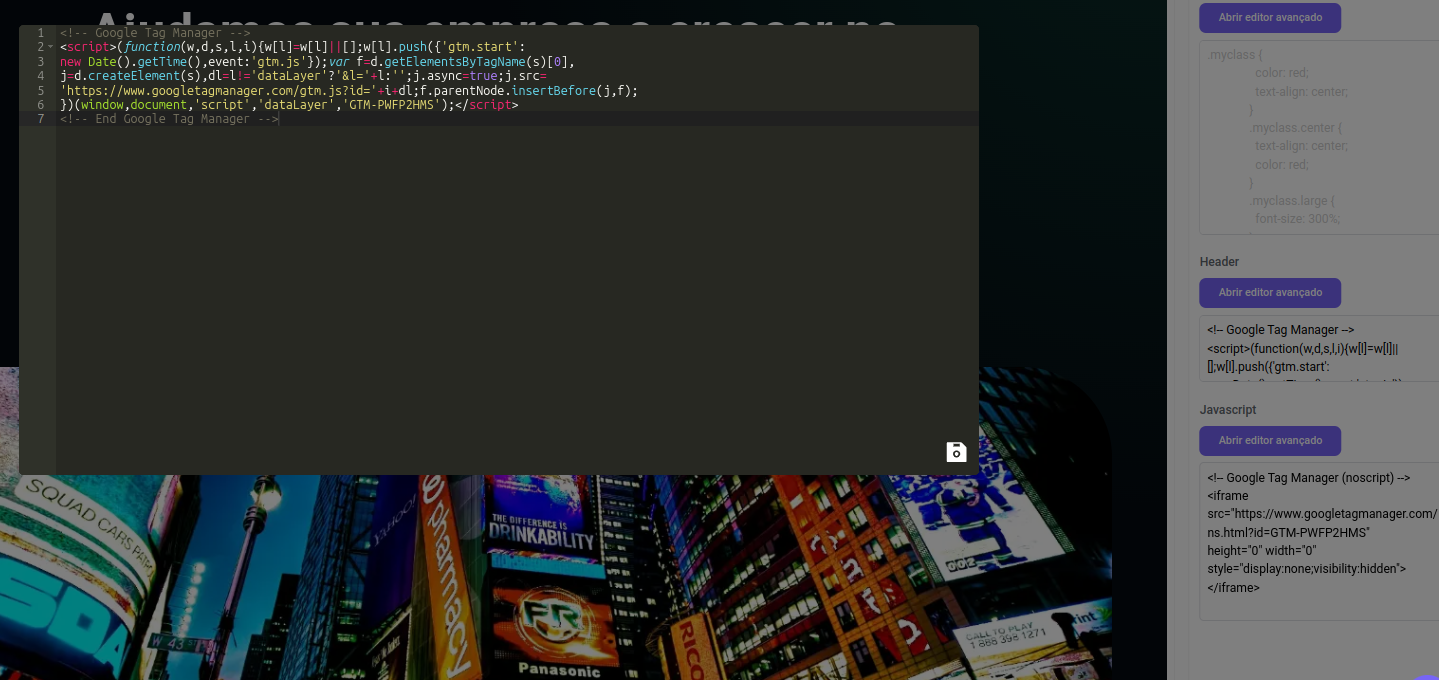
**Insert the Code**: add the script in the header through the advanced editor:
#### Step 4: Publish the Landing Page
After inserting the code, review your landing page to make sure everything is correct. Then publish the landing page so that the Google tag code starts working.
#### Verify the Connection
Finally, use the "Test the connection" option to ensure the tag has been configured correctly and is collecting data.
#### Conclusion
Adding the Google tag to your landing page is a simple task that can bring great benefits by allowing you to monitor and analyze your site's performance. Following these steps, you ensure that the code is inserted correctly and begins collecting valuable data immediately.
***
**Note**: The images provided show the visual process of how to insert the tag in the SprintHub landing page editor. Be sure to follow the visual steps along with the text guide for an accurate implementation.
---
# Agent Instructions
This documentation is published with GitBook. GitBook is the documentation platform designed so that both humans and AI agents can read, navigate, and reason over technical content effectively. Learn more at gitbook.com.
## Querying This Documentation
If you need additional information that is not directly available in this page, you can query the documentation dynamically by asking a question.
Perform an HTTP GET request on the current page URL with the `ask` query parameter, and the optional `goal` query parameter:
```
GET https://docs.sprinthub.com/en/topics/attract/landing-page/landing-page-google-tag-manager/landing-page-how-to-add-the-google-tag-to-your-landing-page-in-sprinthub.md?ask=&goal=
```
`ask` is the immediate question: it should be specific, self-contained, and written in natural language.
`goal` is optional and describes the broader end goal you are ultimately trying to accomplish on behalf of the user. GitBook uses it to tailor the answer towards what is most useful for that goal.
The response will contain a direct answer to the question and relevant excerpts and sources from the documentation.
Use this mechanism when the answer is not explicitly present in the current page, you need clarification or additional context, or you want to retrieve related documentation sections.