> For the complete documentation index, see [llms.txt](https://docs.sprinthub.com/llms.txt). Markdown versions of documentation pages are available by appending `.md` to page URLs; this page is available as [Markdown](https://docs.sprinthub.com/topicos/geral/crm/crm-configuracoes-iniciais/crm-tempo-maximo-cor-do-alerta.md).
# CRM - Tempo Máximo (Cor do Alerta)
Para facilitar a visualização de negócios inativos, o CRM permite configurar cores de alerta nos cards de oportunidades. Essas cores aparecem de acordo com o **tempo máximo definido**, ajudando você a identificar rapidamente quando um negócio está parado há muito tempo.
Você pode:
* Definir a **cor do alerta**.
* Escolher o **tempo máximo de inatividade**.
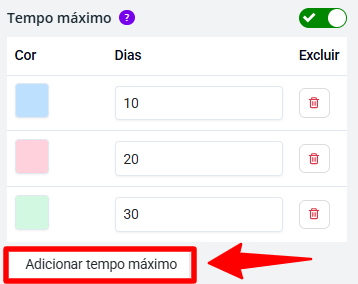
* Adicionar **mais de uma cor** para criar diferentes níveis de atenção.
#### Como configurar
1. Acesse o **CRM**.
2. Vá em **Configurações** → **Lista de Funis**. No funil desejado, clique em Configurações.
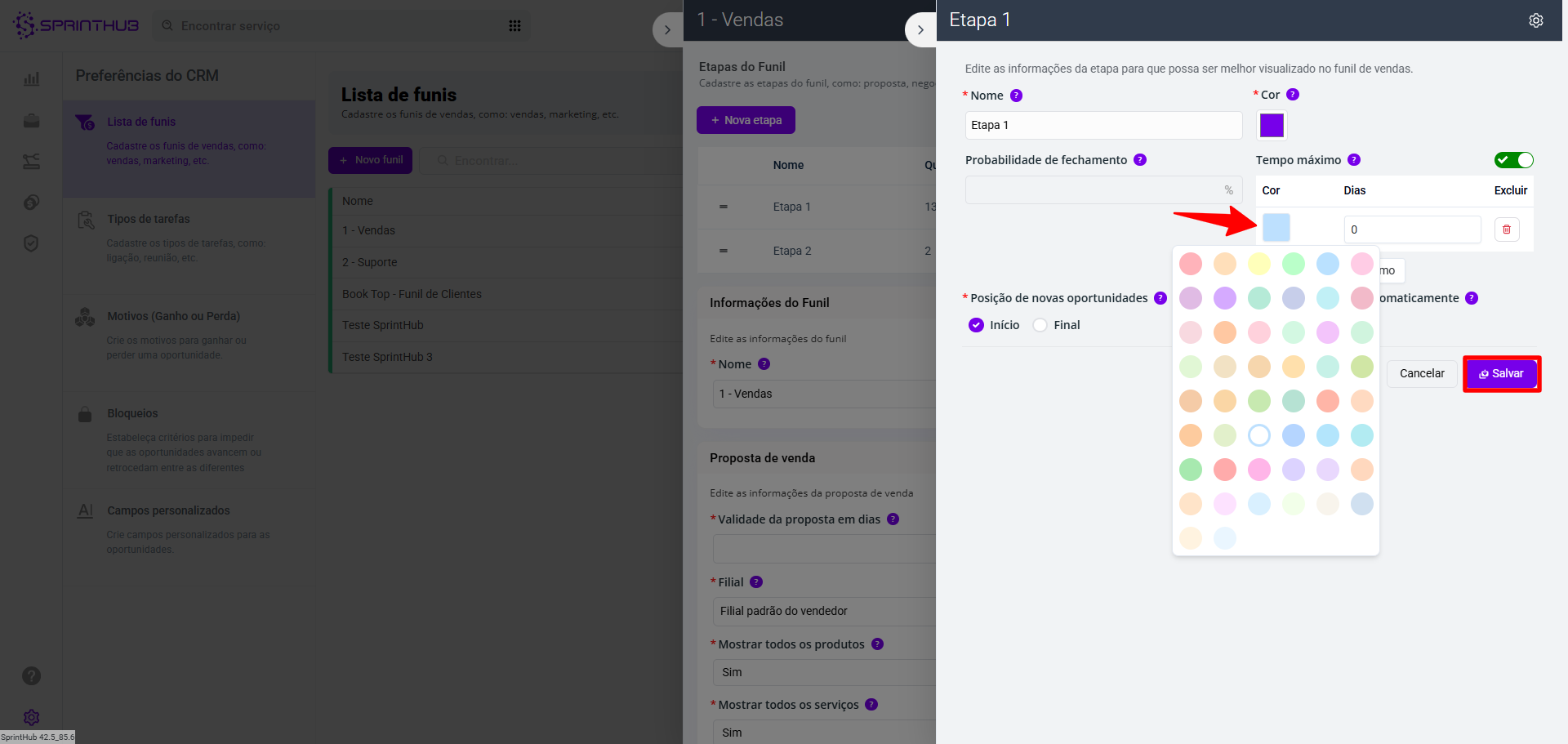
3. Na etapa, clique em **Editar**.
4. Defina a **cor** e o **tempo máximo de inatividade.**
Você pode adicionar mais cores em tempo máximo, clicando em "Adicionar Tempo Máximo":
5. Clique em **Salvar** na edição da etapa e também clique em **Salvar** na edição do funil
Pronto! Agora seus cards mostrarão automaticamente as cores de alerta conforme o tempo de cada oportunidade.
🎥 Confira no vídeo abaixo o passo a passo completo para configurar:
{% embed url="" %}
---
# Agent Instructions
This documentation is published with GitBook. GitBook is the documentation platform designed so that both humans and AI agents can read, navigate, and reason over technical content effectively. Learn more at gitbook.com.
## Querying This Documentation
If you need additional information that is not directly available in this page, you can query the documentation dynamically by asking a question.
Perform an HTTP GET request on the current page URL with the `ask` query parameter, and the optional `goal` query parameter:
```
GET https://docs.sprinthub.com/topicos/geral/crm/crm-configuracoes-iniciais/crm-tempo-maximo-cor-do-alerta.md?ask=&goal=
```
`ask` is the immediate question: it should be specific, self-contained, and written in natural language.
`goal` is optional and describes the broader end goal you are ultimately trying to accomplish on behalf of the user. GitBook uses it to tailor the answer towards what is most useful for that goal.
The response will contain a direct answer to the question and relevant excerpts and sources from the documentation.
Use this mechanism when the answer is not explicitly present in the current page, you need clarification or additional context, or you want to retrieve related documentation sections.