> For the complete documentation index, see [llms.txt](https://docs.sprinthub.com/llms.txt). Markdown versions of documentation pages are available by appending `.md` to page URLs; this page is available as [Markdown](https://docs.sprinthub.com/en/topics/system-settings/tracking/tracking-how-to-add-the-tracking-code-in-wix.md).

# Tracking - How to add the tracking code in Wix

<figure><img src="https://684109703-files.gitbook.io/~/files/v0/b/gitbook-x-prod.appspot.com/o/spaces%2F9FzUKkagBNy5uQ7AtGNa%2Fuploads%2F7NXPqH4wD64AHC7mVVRd%2Fundraw_web-shopping_m3o2.png?alt=media&amp;token=243c00bf-1319-4c87-8673-e668bc815825" alt=""><figcaption></figcaption></figure>

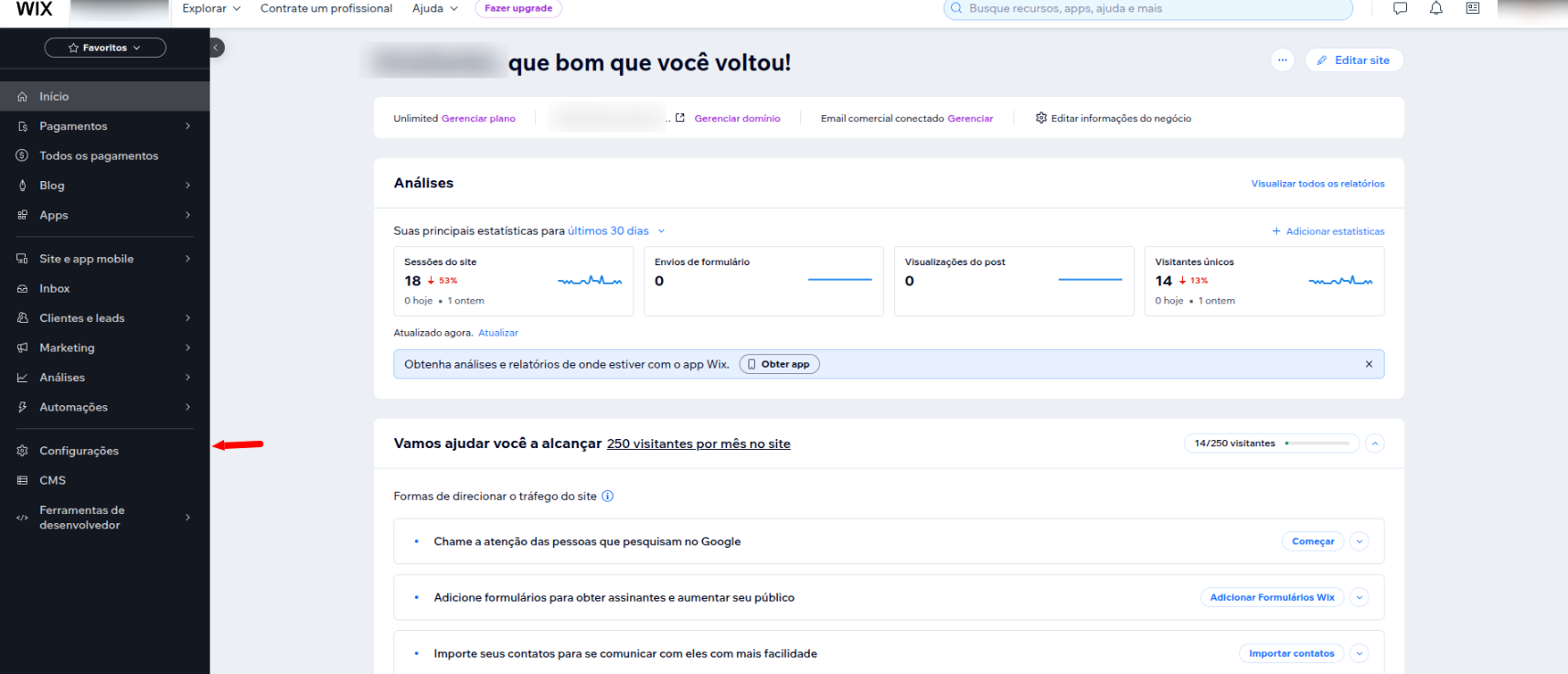
#### 1. Access the Wix Control Panel

1. Log in to your Wix account.
2. In the left side menu, click on **Settings**.

<figure><img src="https://684109703-files.gitbook.io/~/files/v0/b/gitbook-x-prod.appspot.com/o/spaces%2F9FzUKkagBNy5uQ7AtGNa%2Fuploads%2FIMXl54cCyNt9f6wPyEUM%2Fimage.png?alt=media&amp;token=359ad133-8710-4475-b4dc-b1b503a4c76c" alt=""><figcaption></figcaption></figure>

#### 2. Go to the Custom Code Section

1. Within **Settings**, scroll down until you find **Development and Integrations**.
2. Click the option **Custom Code**.

<figure><img src="https://684109703-files.gitbook.io/~/files/v0/b/gitbook-x-prod.appspot.com/o/spaces%2F9FzUKkagBNy5uQ7AtGNa%2Fuploads%2Fg51Uq6IICUUYm3xckLPq%2Fimage.png?alt=media&amp;token=5927ff55-ada1-43c9-83f3-c770248e03a0" alt=""><figcaption></figcaption></figure>

#### 3. Add a New Custom Code

<figure><img src="https://684109703-files.gitbook.io/~/files/v0/b/gitbook-x-prod.appspot.com/o/spaces%2F9FzUKkagBNy5uQ7AtGNa%2Fuploads%2F8r5Rt06Ipyb4zuSipOn0%2Fimage.png?alt=media&amp;token=425b1963-9e69-4682-9af3-384e736f5133" alt=""><figcaption></figcaption></figure>

Click the button **+ Custom Code** located in the upper-right corner.

<figure><img src="https://684109703-files.gitbook.io/~/files/v0/b/gitbook-x-prod.appspot.com/o/spaces%2F9FzUKkagBNy5uQ7AtGNa%2Fuploads%2FsJz0tiiqUHRMaezEIoHp%2Fimage.png?alt=media&amp;token=6289ee07-e574-4f06-b92d-f10f5e752cb2" alt=""><figcaption></figcaption></figure>

In the configuration box that opens:

* **Paste Sprinthub's tracking code** into the script field.
* In the **First name**, enter a recognizable name, such as "Sprinthub Tracking".
* Select **All pages** to ensure tracking works across the entire site.
* Choose the option **Load code on each visit**.
* In **Add code to**, check the option **Head**.

<figure><img src="https://684109703-files.gitbook.io/~/files/v0/b/gitbook-x-prod.appspot.com/o/spaces%2F9FzUKkagBNy5uQ7AtGNa%2Fuploads%2F1VBu6c6XeCZmDxx9Mv5g%2Fimage.png?alt=media&amp;token=7d9ad461-4232-4da6-9d0c-76ba8ce9abdf" alt=""><figcaption></figcaption></figure>

Click on **OK** to save.

#### 4. Publish the Changes

After saving the code, go back to the main Wix dashboard and click **Publish** to apply the changes to your site.

### Conclusion

Adding Sprinthub's tracking code to Wix is a simple but essential process for collecting data about visitor behavior on your site. With this information, you can optimize campaigns and improve the user experience more strategically. If you have questions, contact Sprinthub support for more assistance!