> For the complete documentation index, see [llms.txt](https://docs.sprinthub.com/llms.txt). Markdown versions of documentation pages are available by appending `.md` to page URLs; this page is available as [Markdown](https://docs.sprinthub.com/en/topics/system-settings/account-settings/whatsapp-web/whatsapp-web-options-creating-a-custom-whatsapp-button.md).

# WhatsApp Web - Options: Creating a Custom WhatsApp Button

You can create your own custom WhatsApp button to embed on your websites.

<figure><img src="https://684109703-files.gitbook.io/~/files/v0/b/gitbook-x-prod.appspot.com/o/spaces%2F9FzUKkagBNy5uQ7AtGNa%2Fuploads%2Fl7Pw6Oc5KyipVAUZLRCX%2Filustracao-do-conceito-de-caixa-de-entrada-movel_114360-4014.png?alt=media&amp;token=43cd479d-80f0-4ae1-a320-eec78f35d329" alt=""><figcaption></figcaption></figure>

*To generate your WhatsApp Button, follow these steps:*&#x20;

Click on **Settings** and then on **System**;

<figure><img src="https://684109703-files.gitbook.io/~/files/v0/b/gitbook-x-prod.appspot.com/o/spaces%2F9FzUKkagBNy5uQ7AtGNa%2Fuploads%2F95l4AC9ixPOIF4jVNPCJ%2Fimage.png?alt=media&amp;token=c7cd2fda-0829-41f6-be1d-d34beda3982f" alt=""><figcaption></figcaption></figure>

Then click on **Account Settings**, choose your account in **WhatsApp Web**, and click on **Generate Button**.

<figure><img src="https://684109703-files.gitbook.io/~/files/v0/b/gitbook-x-prod.appspot.com/o/spaces%2F9FzUKkagBNy5uQ7AtGNa%2Fuploads%2FexZGt1uUN1GskmHGeH26%2Fimage.png?alt=media&amp;token=251170bb-c153-48ab-85f2-50ac625a6d97" alt=""><figcaption></figcaption></figure>

Now choose your button position and size, then click Copy; the WhatsApp button code can be used in Landing Pages in SprintHub or on other pages, according to your preference.

<figure><img src="https://684109703-files.gitbook.io/~/files/v0/b/gitbook-x-prod.appspot.com/o/spaces%2F9FzUKkagBNy5uQ7AtGNa%2Fuploads%2FughauQD0PEF3dAmmh4Cs%2Fimage.png?alt=media&amp;token=65b57c60-9bc9-4517-b4ce-dfee5f75f441" alt=""><figcaption></figcaption></figure>

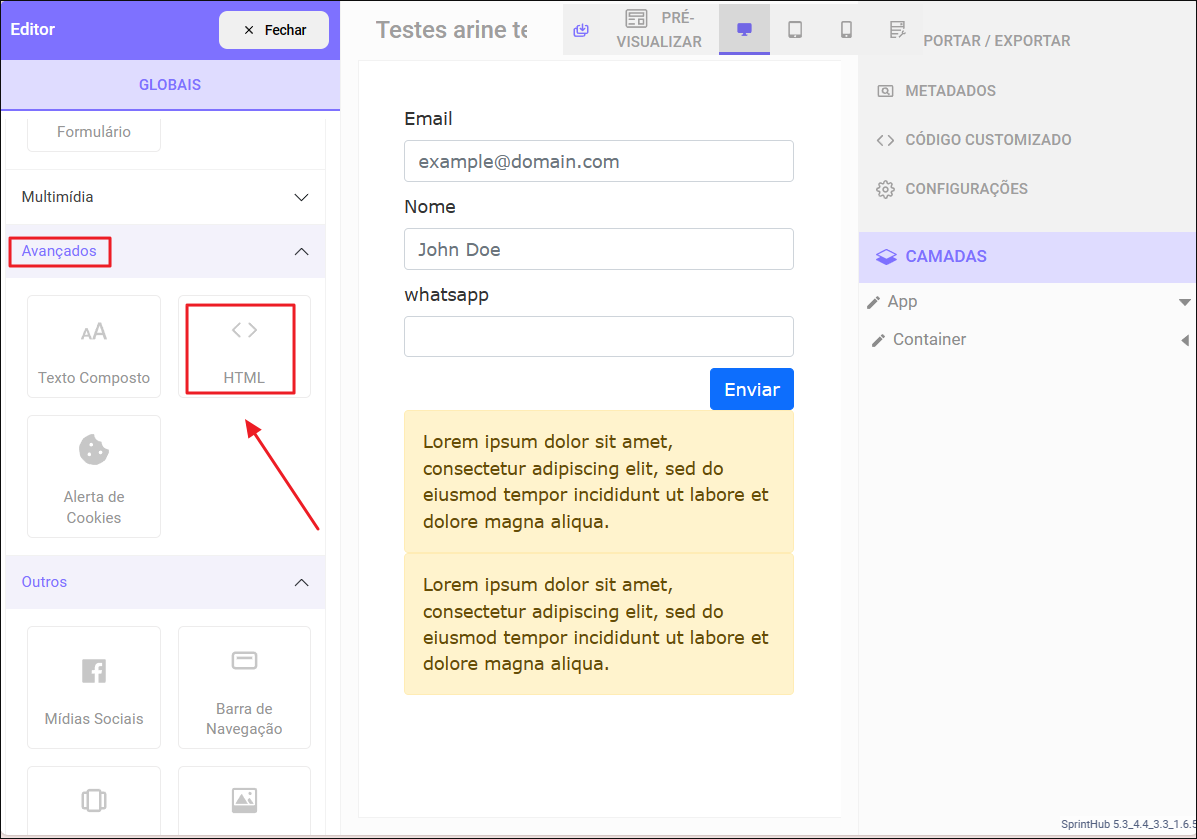
To add your WhatsApp button to a Landing Page in SprintHub, simply access the Landing Page builder and follow these steps: go to 'Advanced' and select 'HTML', then drag 'HTML' to the center of the screen:

<figure><img src="https://684109703-files.gitbook.io/~/files/v0/b/gitbook-x-prod.appspot.com/o/spaces%2F9FzUKkagBNy5uQ7AtGNa%2Fuploads%2F2bmqiUrNBfTtcicgXg6F%2Fimage.png?alt=media&amp;token=8025e16e-c389-445e-ad4f-19939c0a2c3c" alt=""><figcaption></figcaption></figure>

<figure><img src="https://684109703-files.gitbook.io/~/files/v0/b/gitbook-x-prod.appspot.com/o/spaces%2F9FzUKkagBNy5uQ7AtGNa%2Fuploads%2FAPHbQw8iAdQWA3jbXkuG%2Fimage.png?alt=media&amp;token=9dc8fd09-e0c7-41af-9bb1-2bee2bcf13df" alt=""><figcaption></figcaption></figure>

Then paste the copied code:&#x20;

After you have pasted your code, your custom button will appear on your landing page.

<figure><img src="https://684109703-files.gitbook.io/~/files/v0/b/gitbook-x-prod.appspot.com/o/spaces%2F9FzUKkagBNy5uQ7AtGNa%2Fuploads%2FPIAxAsMFDJBtTko0YtFQ%2Fimage.png?alt=media&amp;token=501a6dd3-0199-4769-9e03-bb06746be627" alt=""><figcaption></figcaption></figure>

Finally, when you click the WhatsApp icon, you will be automatically directed to the WhatsApp conversation you linked to the link.

<figure><img src="https://684109703-files.gitbook.io/~/files/v0/b/gitbook-x-prod.appspot.com/o/spaces%2F9FzUKkagBNy5uQ7AtGNa%2Fuploads%2FvPemKuzftNUw2S6ZfA5Y%2Fimage.png?alt=media&amp;token=8c44e8fb-811f-4dff-a32d-2c57ff1151e4" alt=""><figcaption></figcaption></figure>