> For the complete documentation index, see [llms.txt](https://docs.sprinthub.com/llms.txt). Markdown versions of documentation pages are available by appending `.md` to page URLs; this page is available as [Markdown](https://docs.sprinthub.com/en/topics/system-settings/account-settings/whatsapp-web/account-settings-options.md).
# Account Settings - Options
## SprintHub Account Settings: how to use each feature
In the **Account Settings** of SprintHub you will find important features to organize and personalize your WhatsApp support. These options help keep your conversations more professional, focused, and easier to manage.
Below, you will get to know each available feature and understand how to use it in daily life.
***
### How to access Account Settings
1. Click on the **Settings icon**.
2. Go to **System Settings.** Click on **Account Settings**. In **WhatsApp Web,** click the **three dots** and then on **Settings**.
***
### Available features
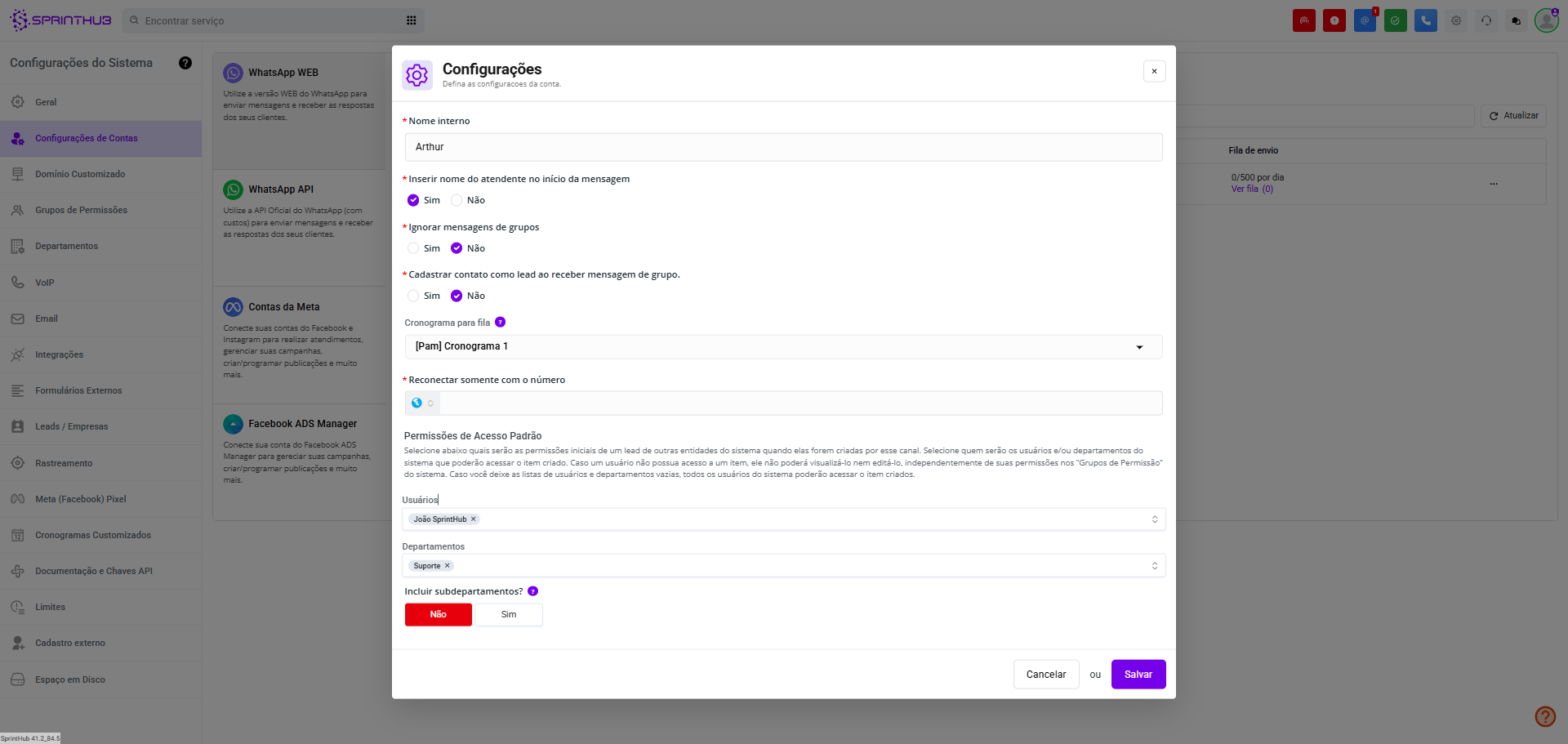
* **Internal name:** It is the name given to the account in the system, used only for internal control.
* **Insert the attendant's name at the beginning of the message:** Enables personalization: whenever an attendant sends a message, the name configured in [**User Preferences**](/en/topics/system-settings/users/user-preferences.md) will appear at the beginning of the text. This conveys more closeness and professionalism.
* **Ignore messages from groups:** If the connected WhatsApp has groups, these messages also appear in the CRM. When you activate this option, SprintHub **ignores group messages**, leaving only individual and relevant conversations visible.
* **Register contact as lead when receiving a group message:** If you do not activate the previous option (ignore groups), you can keep this feature enabled. Thus, whenever someone sends a message in a group, that person will automatically be registered as a lead in your database.
* **Schedule for queue:** Allows messages sent by automations to be triggered only **within the schedule you configure** (for example: only during business hours).\
👉 Before activating, you need to create a schedule. [Click here to configure a schedule.](/en/topics/system-settings/schedule-defining-working-hours-for-automations.md)
* **Reconnect only with the number:** Works as a security shortcut: if WhatsApp Web disconnects, the system tries to reconnect automatically with the same number.
* **Lead access permissions:** Defines who will have access to the leads generated by WhatsApp Web (when a contact sends a message).
If you want to restrict visibility to a specific user, add their name in **Users**.
If you want to enable it for an entire department, select the **Department**.
It is also possible to indicate both (users and departments).
***
### Conclusion
These settings allow you to adapt SprintHub to your business needs, helping keep support organized, personalized, and within your operation's rules.
***