> For the complete documentation index, see [llms.txt](https://docs.sprinthub.com/llms.txt). Markdown versions of documentation pages are available by appending `.md` to page URLs; this page is available as [Markdown](https://docs.sprinthub.com/en/topics/system-settings/account-settings/whatsapp-api/official-whatsapp-api-errors/official-whatsapp-payment-issue.md).
# Official WhatsApp - Payment issue
Configure the WhatsApp API payment method in Business Manager to be able to use it in SprintHub
This detailed guide will help you understand and carry out the setup correctly, ensuring that your company can continue communicating efficiently with your customers via WhatsApp.
### Issue with support interactions
If your support interactions are appearing as shown below, it means there is a payment problem with the official WhatsApp account, and because of that Meta blocks communication with any integration:
When you click the icon, the following error should appear:
***`402`**** ****- Business eligibility — Payment issue***
Which means:
The message was not sent because there were one or more errors related to your payment method.
The payment account is not linked to a WhatsApp account The credit line has exceeded the limit Credit line (payment account) not defined or active The WhatsApp business account has been deleted The account has been suspended by us Time zone not defined Currency not defined The MessagingFor (on behalf of (OBO)) request is pending or denied The free conversation tier limit was exceeded without a valid payment method. (This type of error will be thrown on February 1, 2022). Check your payment setup in WhatsApp Manager and try again.
{% embed url="" %}
### 💳 How to add a credit card to the WhatsApp API account (WABA)
To use the **Meta Cloud API**, send **WhatsApp templates** and keep your **WABA active**, you need to have a **registered payment method** at Meta.\
This card is added **inside Business Manager** — not in WhatsApp.
Below is the complete step-by-step guide:
***
### ✅ 1. Access Meta Business Manager
Log in to your business account:
👉
Make sure you are using the **same Business Manager** where your WABA is set up.
***
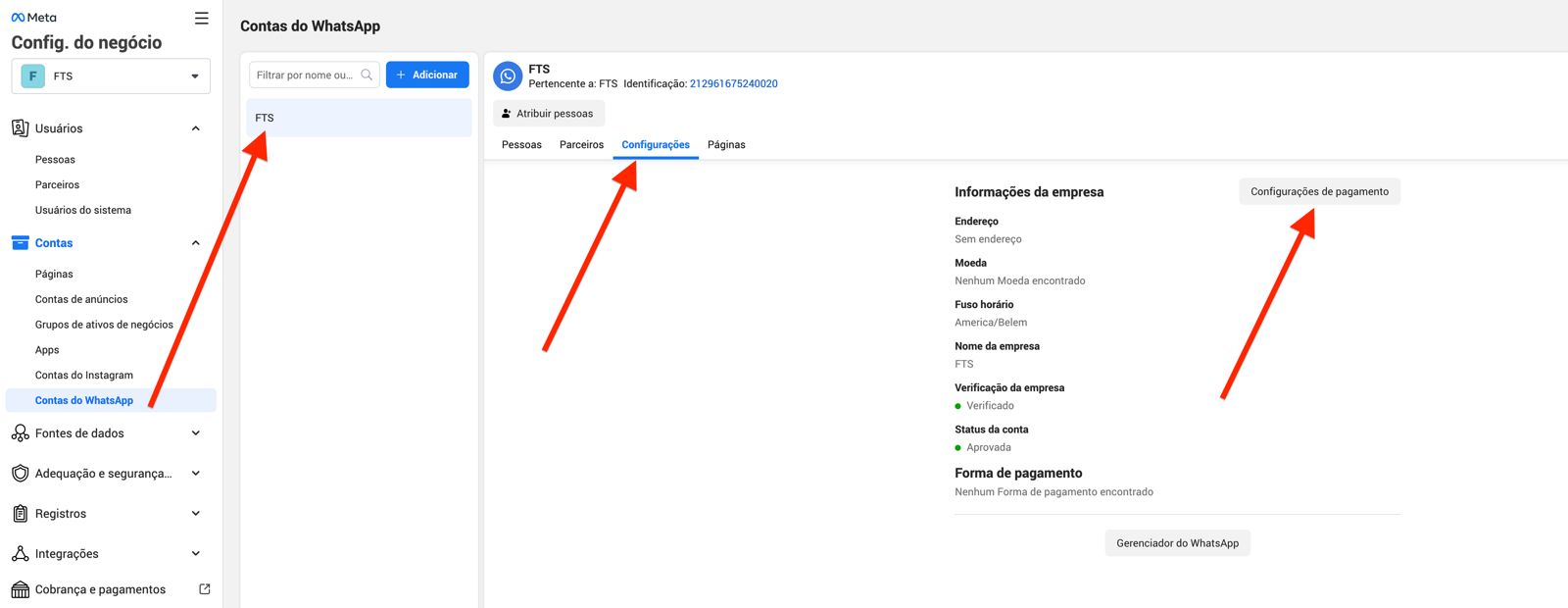
### ✅ 2. Access Payment Settings
In the side menu:
**Business settings → Accounts → WhatsApp accounts**
1. Click on the **your WhatsApp account**
2. In the right corner, click **Payment Settings**\
(Or **Payment Settings / Payments**, depending on the language)
If you prefer another path:
**Business settings → Billing / Payments**\
The WABA also appears there.
***
### ✅ 3. Select the payment method
1. Click on **Add payment method**
2. Choose **Credit or debit card**
3. Enter the details:
* Card number
* Expiration date
* CVV
* Cardholder name
* Billing address
4. Click on **Save**
### ⚠️ Important information
#### ✔ The card must have:
* International function enabled
* Available limit in dollars
* Permission for online purchases (e-commerce)
Meta charges in **USD**, even though you are in Brazil.
***
### 💡 Where exactly does this appear in BM?
Depending on your Business Manager version, the names may vary. The possible locations are:
#### **Location 1 — Payments (most common)**
**Business settings → Payments**
> Here the WABA and ads tabs appear.
#### **Location 2 — Billing**
**Business settings → Billing**
#### **Location 3 — In the WABA itself**
**Business settings → Accounts → WhatsApp accounts → Payment settings**
***
### ❓ If the “Add payment” button does not appear
This may happen if:
#### ✔ Your business is not verified
Check in:**Business settings → Security Center → Business verification**
#### ✔ You do not have permission to manage payments
Ask someone to grant:
**Permission: Finance editor / Financial editor**
#### ✔ The WABA is linked to another Business Manager
The integration may be in another BM (very common).\
To check:
**Business settings → Accounts → WhatsApp accounts → Owner**
***
### 🎯 Quick summary
1. Access Business Manager
2. Go to **Payments** or **WhatsApp accounts → Payment settings**
3. Click **Add payment method**
4. Enter the card
5. Save
***
### 🔍 Payment verification
After adding the credit card to your WABA account, it is important to confirm whether the payment method is working correctly. To do this, follow the steps below:
1. **Send a test message using the WhatsApp API**
* Use your already configured integration
* Send a **message template (HSM)** to any authorized number.
2. **Check whether the message was sent successfully**
* If you are using SprintHub, you can check the log inside SAC360 or the integration logs.
* In the provider, check the message status records.
3. **If the message is not sent:**
* Review the **payment settings** in Business Manager.
* Confirm that the card has **active**, **limit** and **enabled for international purchases**.
* Check whether your business is **verified**, as this may block paid messages.
* Check whether the card is selected as the **default payment method** for the WABA.
After confirmation, your account will be ready for continued API use and template sending.
---
# Agent Instructions
This documentation is published with GitBook. GitBook is the documentation platform designed so that both humans and AI agents can read, navigate, and reason over technical content effectively. Learn more at gitbook.com.
## Querying This Documentation
If you need additional information that is not directly available in this page, you can query the documentation dynamically by asking a question.
Perform an HTTP GET request on the current page URL with the `ask` query parameter, and the optional `goal` query parameter:
```
GET https://docs.sprinthub.com/en/topics/system-settings/account-settings/whatsapp-api/official-whatsapp-api-errors/official-whatsapp-payment-issue.md?ask=&goal=
```
`ask` is the immediate question: it should be specific, self-contained, and written in natural language.
`goal` is optional and describes the broader end goal you are ultimately trying to accomplish on behalf of the user. GitBook uses it to tailor the answer towards what is most useful for that goal.
The response will contain a direct answer to the question and relevant excerpts and sources from the documentation.
Use this mechanism when the answer is not explicitly present in the current page, you need clarification or additional context, or you want to retrieve related documentation sections.

.jpeg?alt=media&token=6826dee1-d1fb-4a53-9828-b1f95a807039)