> For the complete documentation index, see [llms.txt](https://docs.sprinthub.com/llms.txt). Markdown versions of documentation pages are available by appending `.md` to page URLs; this page is available as [Markdown](https://docs.sprinthub.com/en/topics/relate/automation-flows/actions/automation-flow-change-delete-lead-information.md).
# Automation Flow - Change/Delete lead information
In this example, you imported leads with incorrect common information. To avoid deleting/changing this information manually, follow these steps:
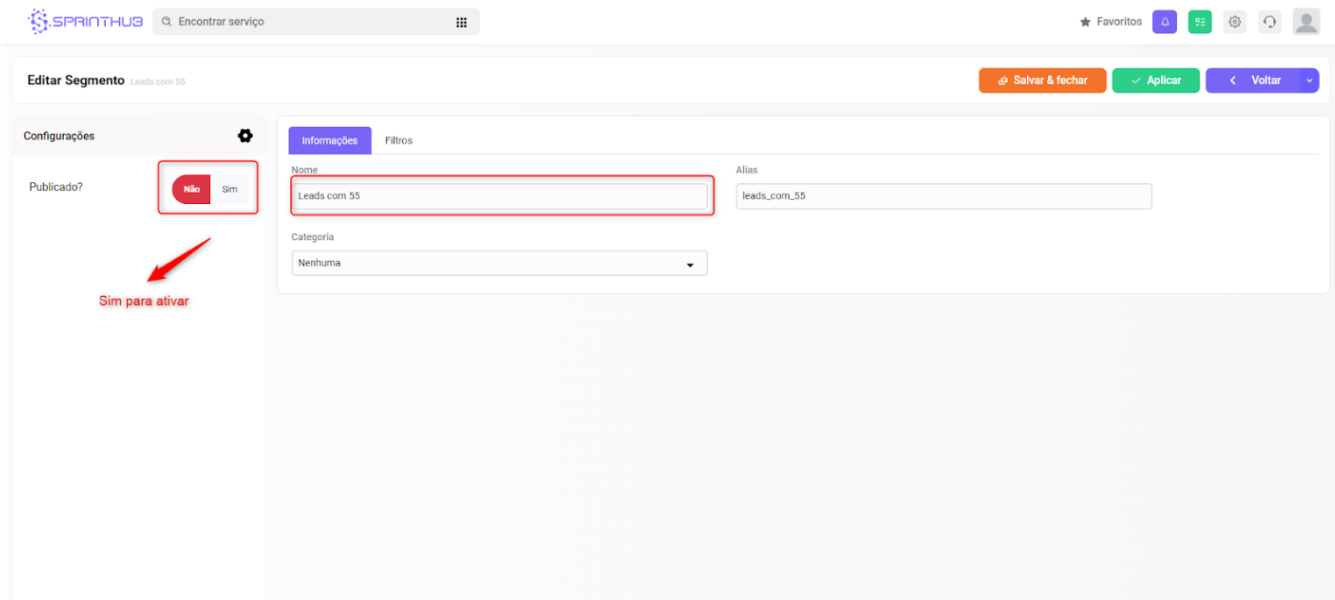
1 - Create a segment with a filter. To do this, search for Segment in the Menu
Click +New and type a name
2 - In the Filters tab, click +New Filter, and add the option:\
“Lead field value is”, choose which field contains the information you want to delete/replace, then select the option “Equals” and type it exactly as it appears in the indicated field.
In the example below, the leads received the data 55 and +55 in the mobile phone field
3 - Now let's configure the **Automation Flow**. In the menu, search for Automation Flow, click +New and type a name
4 - Open the builder and add the action block “Modify lead data”, indicate the field that will be modified, and type what will be changed/deleted.
In our example, we want to leave this field with the data deleted, so we left the field blank.
Click apply, and save the flow.