> For the complete documentation index, see [llms.txt](https://docs.sprinthub.com/llms.txt). Markdown versions of documentation pages are available by appending `.md` to page URLs; this page is available as [Markdown](https://docs.sprinthub.com/en/topics/integrations/integrations-outlook.md).
# Integrations - Outlook
With SprintHub, you can integrate the **Outlook/Office 365** simply and efficiently. Through our "Email Inbox", it is possible to send and receive emails directly on the platform, streamlining your team’s workflow and boosting productivity.
**Outlook:** In "System Settings", click on the section '**Integrations**' ;
**Allow access to your organization to connect your Outlook/Office 365 account with SprintHub.**
{% hint style="info" %}
*The Office 365 account administrator must click the shield icon with a key to authorize the app. After this step, other users can add the account.*
{% endhint %}
After allowing access, click 'View accounts' and then click **Add account**;
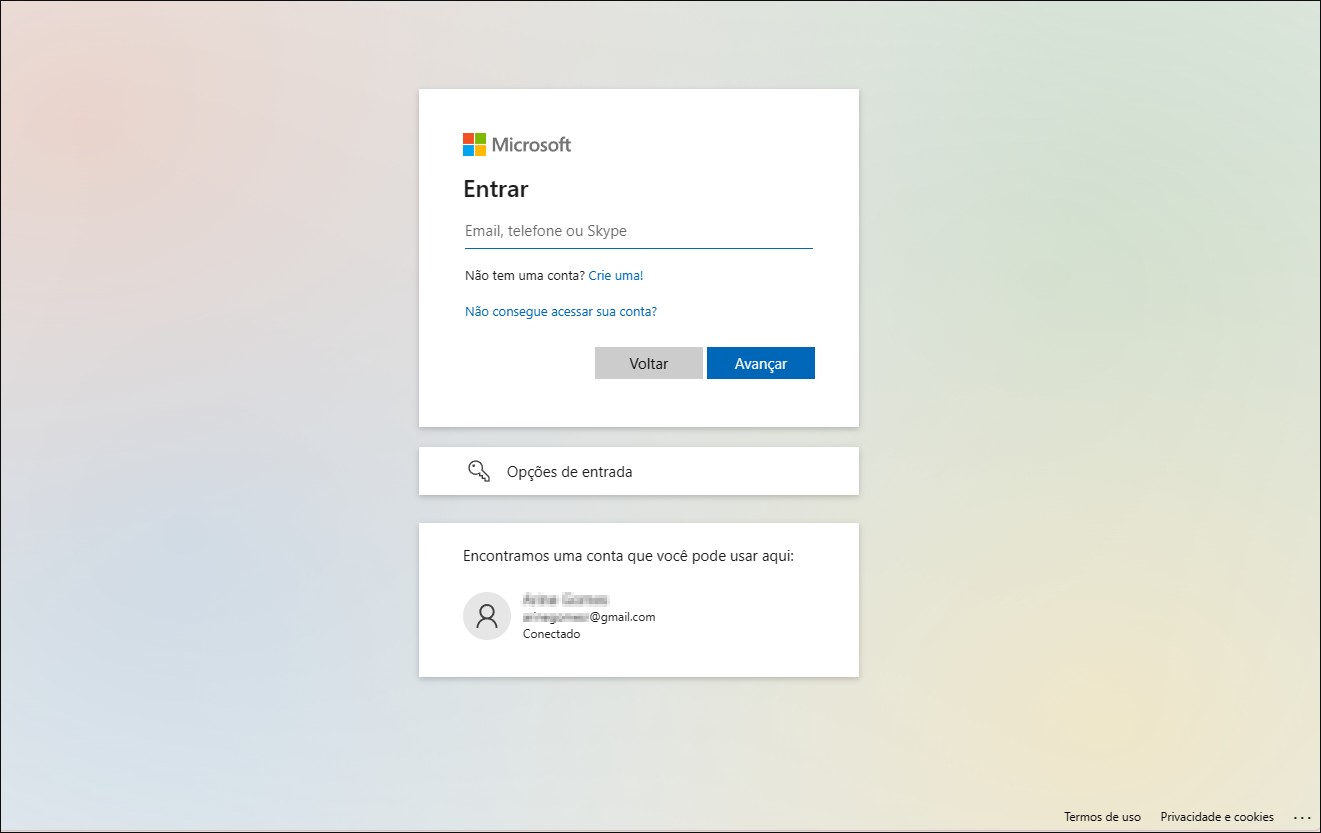
Now, add the Outlook account you want to integrate with SprintHub;
(The account will be connected on another page, on the Outlook website itself)
After adding and connecting your Outlook account, it will be ready to use in the system. You will be able to use it just like in Outlook, sending and receiving emails.
## Email Inbox
* Go to the "Email Inbox" via “Find Services”. Or just type the name, and the function will appear.
* To create, click “+ New”.
To send a new email, click the 'New email' option, fill in the recipient and subject fields, compose it according to your preferences, and then simply click 'Send'.
For more information about the "Email Inbox" feature, click the link below:
{% content-ref url="/pages/e0a6eea7d1fc1aab76166bf8d1c8b10a3eeb2860" %}
[Email Inbox](/en/topics/general/email-inbox.md)
{% endcontent-ref %}
***
### Setting Up the Integration with SAC 360º
When accessing the email account settings, you will find the following options:
When you enable this option, the email account starts working as a SAC 360º support channel.
* Each email received from a **new contact** automatically creates a support ticket in SAC 360º.
* Messages are received through the **IMAP**, with automatic synchronization every **1 to 5 minutes**.
> **Important:** Only new contacts automatically create a support ticket. Other messages are linked to the existing history.
***
### Mark emails as read
Defines how emails behave in the provider's inbox after being synchronized.
#### Enabled
After being imported into SprintHub, emails are automatically marked as **read** in the provider's inbox.
#### Disabled (Default)
Emails remain **unread** in the provider's inbox, even after being synchronized with SprintHub.
***
### Conversation model
Defines how messages will be organized within the support ticket in SAC 360º.
#### Continuous conversation
Displays the contact's entire email history in a single ticket, making it easier to view the full communication.
Recommended for teams that want to follow the customer's entire journey in a single conversation.
#### Ticket
Each ticket has its own message history, showing only the emails related to that specific ticket.
Recommended for teams that work with separate requests and want to keep each one separate.
***
### Sender Name
Defines which name will be displayed in the **"From"** field of emails sent by SAC 360º.
#### Account Name
Uses the name configured in the email account itself.
**Example:**
**SprintHub Support** [support@company.com.br](mailto:suporte@empresa.com.br)
#### Agent Name
Uses the name of the user responsible for the support ticket.
**Example:**
**João Silva** [support@company.com.br](mailto:suporte@empresa.com.br)
---
# Agent Instructions
This documentation is published with GitBook. GitBook is the documentation platform designed so that both humans and AI agents can read, navigate, and reason over technical content effectively. Learn more at gitbook.com.
## Querying This Documentation
If you need additional information that is not directly available in this page, you can query the documentation dynamically by asking a question.
Perform an HTTP GET request on the current page URL with the `ask` query parameter, and the optional `goal` query parameter:
```
GET https://docs.sprinthub.com/en/topics/integrations/integrations-outlook.md?ask=&goal=
```
`ask` is the immediate question: it should be specific, self-contained, and written in natural language.
`goal` is optional and describes the broader end goal you are ultimately trying to accomplish on behalf of the user. GitBook uses it to tailor the answer towards what is most useful for that goal.
The response will contain a direct answer to the question and relevant excerpts and sources from the documentation.
Use this mechanism when the answer is not explicitly present in the current page, you need clarification or additional context, or you want to retrieve related documentation sections.