> For the complete documentation index, see [llms.txt](https://docs.sprinthub.com/llms.txt). Markdown versions of documentation pages are available by appending `.md` to page URLs; this page is available as [Markdown](https://docs.sprinthub.com/en/topics/general/tasks/sac-360o/sac-360-automation-create-a-task.md).
# SAC 360° Automation - Create a task
In **SprintHub**, you can automate the creation of tasks related to support cases in **SAC 360º**. This practice helps your team keep the workflow organized and ensures that no activity is forgotten.
### 🚀 Creating an Automation
1️⃣ **Access SAC 360º**
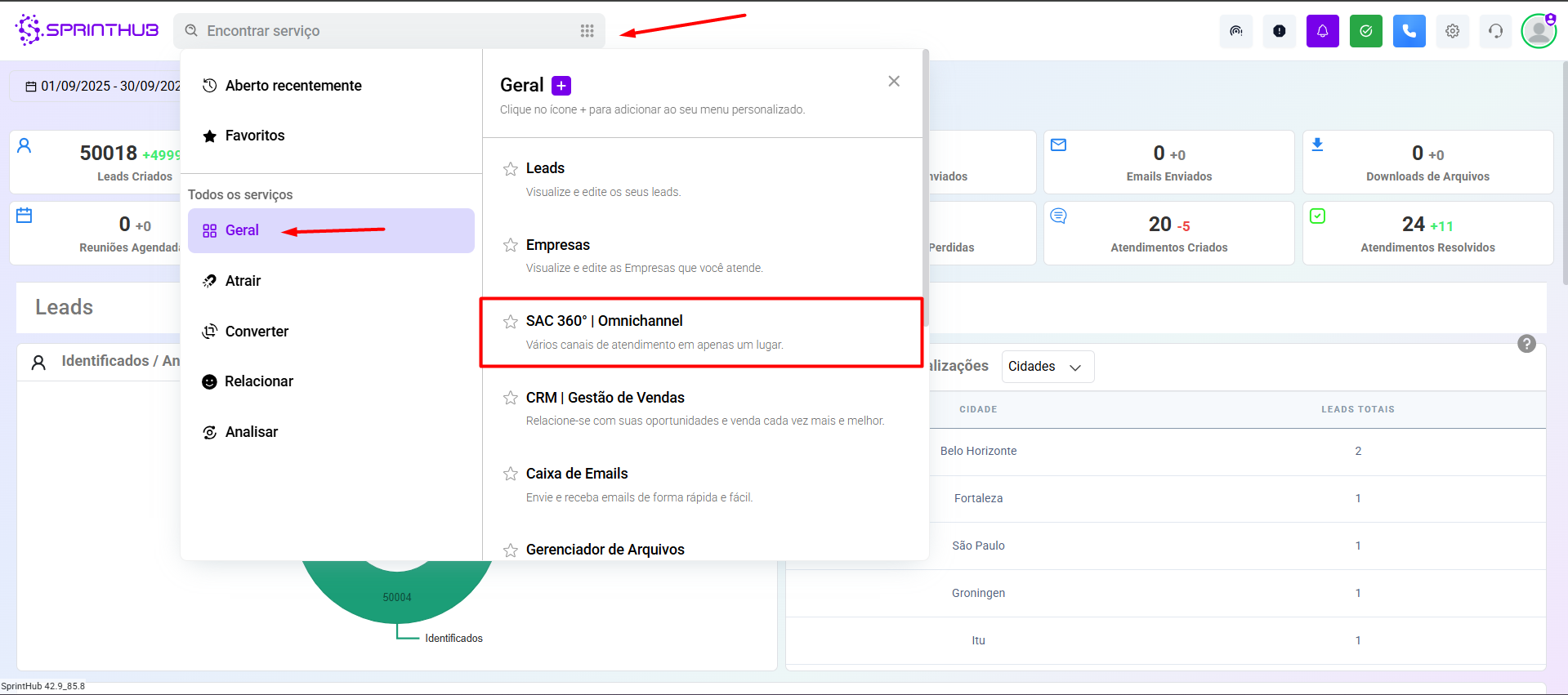
* Go to the **Find Services** and select **SAC 360º**.
* If you prefer, just type the name in the search 🔎.
2️⃣ **Go to Automations**
* Click on **Automations**.
* Then, select **+ New Automation**.
***
#### Configure and Save
* **Title:** ✍️ Example: *“Create call task after status update”* ➡️ Use a clear title to identify the automation.
* **Trigger:** 🔔 Example: *“An opportunity field is updated”* ➡️ Defines **when** the automation should happen.
* **Condition:** ✅ Example: *“The opportunity status is Proposal Sent”* ➡️ Defines **in which situation** the action will be executed.
* **Action:** 📌 Choose **Create task**.
### ⚙️ Task Setup according to Support Case in SAC 360º
When creating the automation in the **SAC 360º**, the task can inherit or be configured according to the case data. See how each field can be adjusted:
* **Board 🗂**\
➡️ Example: *“SAC Cases”*\
The board can be specific for monitoring support and service tasks.
* **Stage 📊**\
➡️ *Open*: case received, awaiting initial action.\
➡️ *Pending*: case in progress, awaiting customer response.\
➡️ *Custom*: steps such as *Waiting for a response*, *Escalated to another department*, etc.
* **Task Title 🏷**\
➡️ Example: *“Follow up with customer João Silva – Protocol #1234”*\
Use case information to make identification easier.
* **Responsible 👤**\
➡️ Example: *“Responsible agent for the protocol”*\
Assigns it to whoever received or is handling the case.
* **Description 🖊**\
➡️ Example: *“Customer reported issues on the invoice. Check with Finance and get back by tomorrow.”*\
It should detail what needs to be resolved.
* **Task Type 🔖**\
➡️ Example: *“SAC Follow-up”* or *“Escalation”*\
Classify according to the nature of the case.
* **Priority 🚦**\
➡️ Example: *“High”* for urgent complaints or legal response deadlines.
* **Due Date (in days) ⏳**\
➡️ Example: *“1 day after the protocol is opened”*\
Useful for ensuring service SLAs.
* **Participants 👥**\
➡️ Example: *“Technical Support Team”*\
If the case requires involvement from more than one person.
* **Observers 👀**\
➡️ Example: *“SAC Coordinator”*\
For supervisors who monitor without editing.
* **Departments 🏢**\
➡️ Example: *“Finance” or “Legal”*\
Used when the handling depends on another department.
* **Attachments 📎**\
➡️ Example: *“Error screenshot sent by the customer”* or *“Call recording”*.
{% embed url="" %}
***
### 💾 Saving and Running
1️⃣ **Save the Automation**\
After configuring all fields, click on **Save**.
2️⃣ **Run the Automation**\
Click **play ▶️** to start execution.
***
✅ Done! Your automation is configured and working in SAC 360º, ensuring that all activities are recorded automatically and your team gains more productivity.