> For the complete documentation index, see [llms.txt](https://docs.sprinthub.com/llms.txt). Markdown versions of documentation pages are available by appending `.md` to page URLs; this page is available as [Markdown](https://docs.sprinthub.com/en/topics/general/sac-360/sac-360o-automations/sac-360o-automations-how-to-change-the-stage-with-the-owner.md).
# SAC 360º - Automations - How to change the stage with the owner
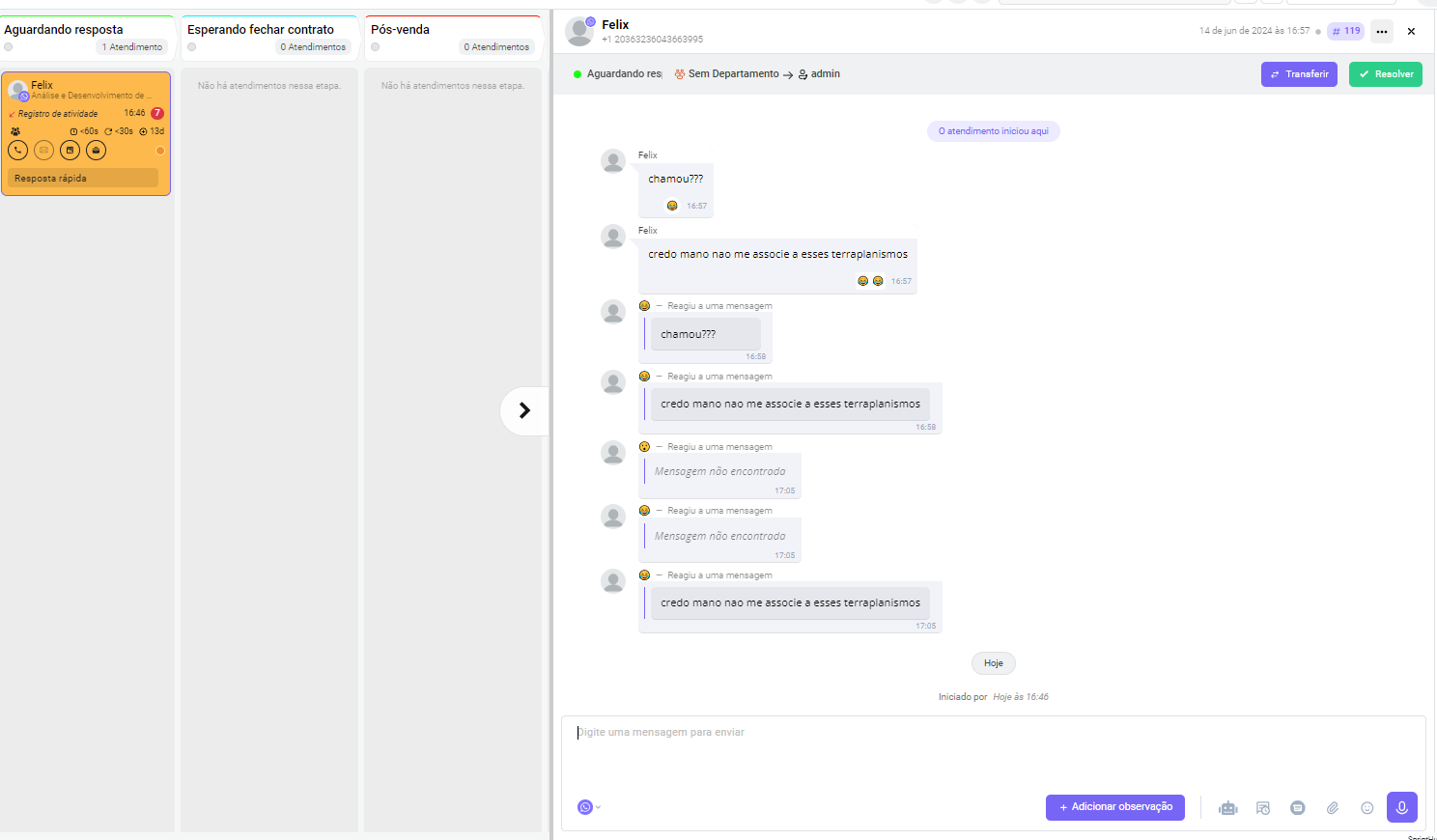
SAC 360º is a powerful tool for managing and automating customer service. One of the most useful features is the ability to automate changing the stage of a service in the kan
This article will guide you through the process of setting up this automation, allowing you to optimize your workflow and improve team efficiency.
**1. Accessing the Automation Module in SAC 360°**
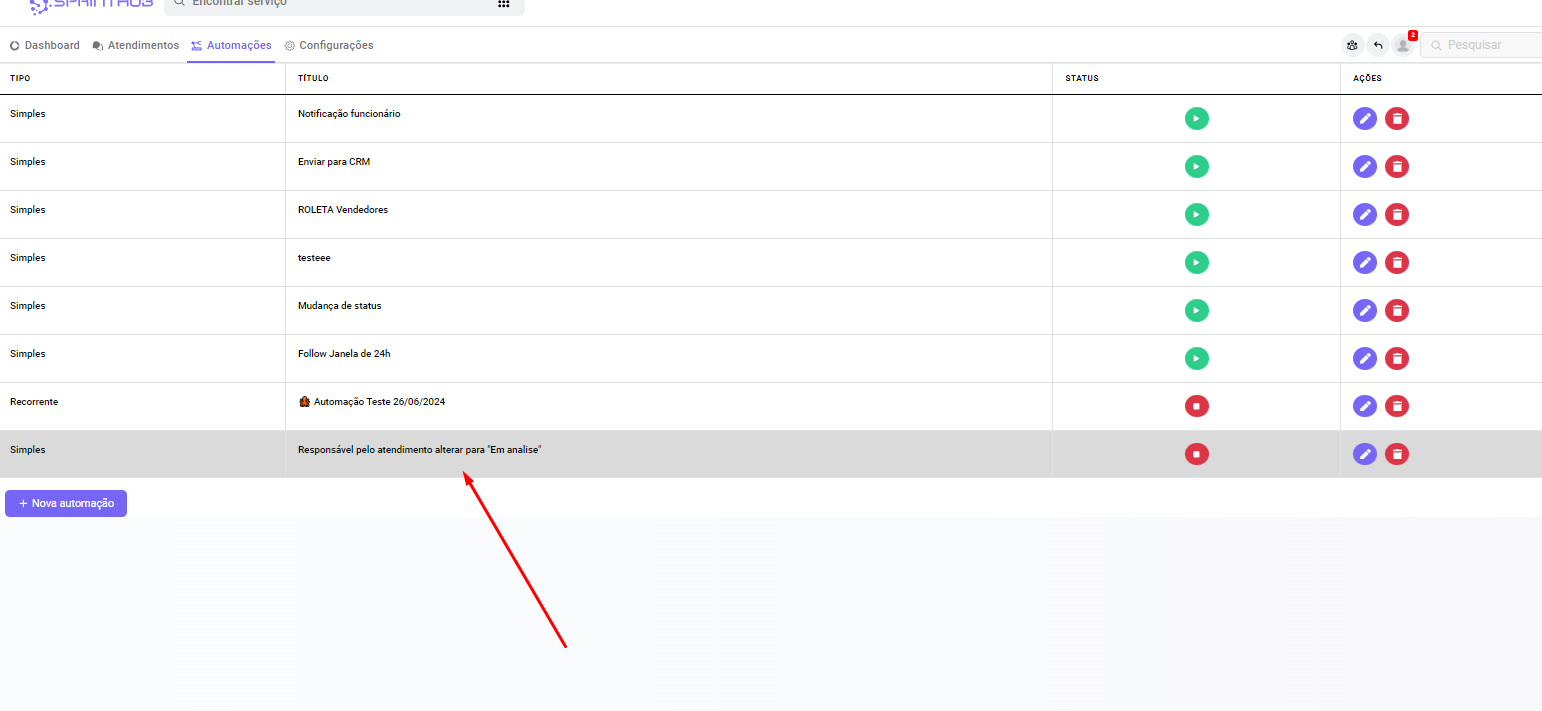
To get started, you need to access the automation module within SAC 360°:
1. On the main dashboard, go to the side menu and select **Automation**.
2. Click on **New Automation** to create a new automation rule.
**2. Configuring the Automation**
On the automation setup screen, follow the steps below to define the necessary conditions and actions to change the service stage in the kanban when changing the assignee:
1. **Title**: Give the automation a clear and descriptive name, such as "Service assignee changes to 'Under review'".
2. **Triggers**:
* Click on **+ New Trigger**.
* Select the trigger **The service assignee is updated**.
* In the trigger configuration, choose **For one of the users** and select the specific users who, when assigned as assignees, will trigger the automation.
3. **Conditions**:
* Click on **+ New Condition** if there is any specific condition for the automation. Otherwise, leave this field blank.
4. **Actions**:
* Click on **+ New Action**.
* Select the action **Change service status**.
* In the description, write something like "Change service status to 'Under review'".
**4. Saving and Testing the Automation**
After setting up all the automation details, click on **Save**. Test the automation by assigning different assignees to a service and check whether the service status changes as configured.
**5. Monitoring the Automation**
Monitor the effectiveness of the automation by periodically reviewing the services and adjusting the settings as needed to improve the team's workflow. To see this report, click on the automation name: