> For the complete documentation index, see [llms.txt](https://docs.sprinthub.com/llms.txt). Markdown versions of documentation pages are available by appending `.md` to page URLs; this page is available as [Markdown](https://docs.sprinthub.com/en/topics/general/sac-360/sac-360o-automations/sac-360o-automation-transferring-service/sac-360o-automation-service-transfer-due-to-attendant-inactivity.md).
# SAC 360º Automation — Service Transfer Due to Attendant Inactivity
#### What is this automation?
When an agent remains inactive for too long without responding to a lead, the case can be transferred automatically to another agent or department. This ensures that no customer is left without a response, even if the original owner is absent or overloaded.
#### When to use it?
Use this automation when you want to:
* Ensure response SLA even with absent agents
* Redistribute cases that have been idle for a long time
* Prevent leads from going unanswered for long periods
### Step by Step:
#### 1. Access SAC 360º Automations
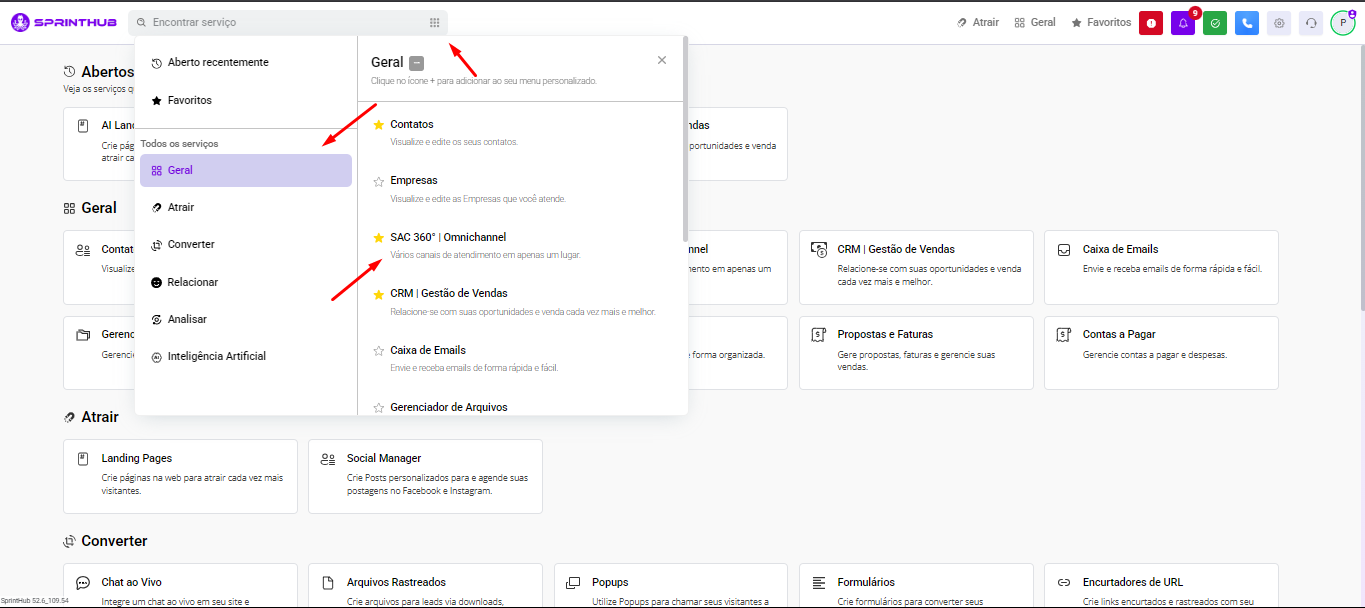
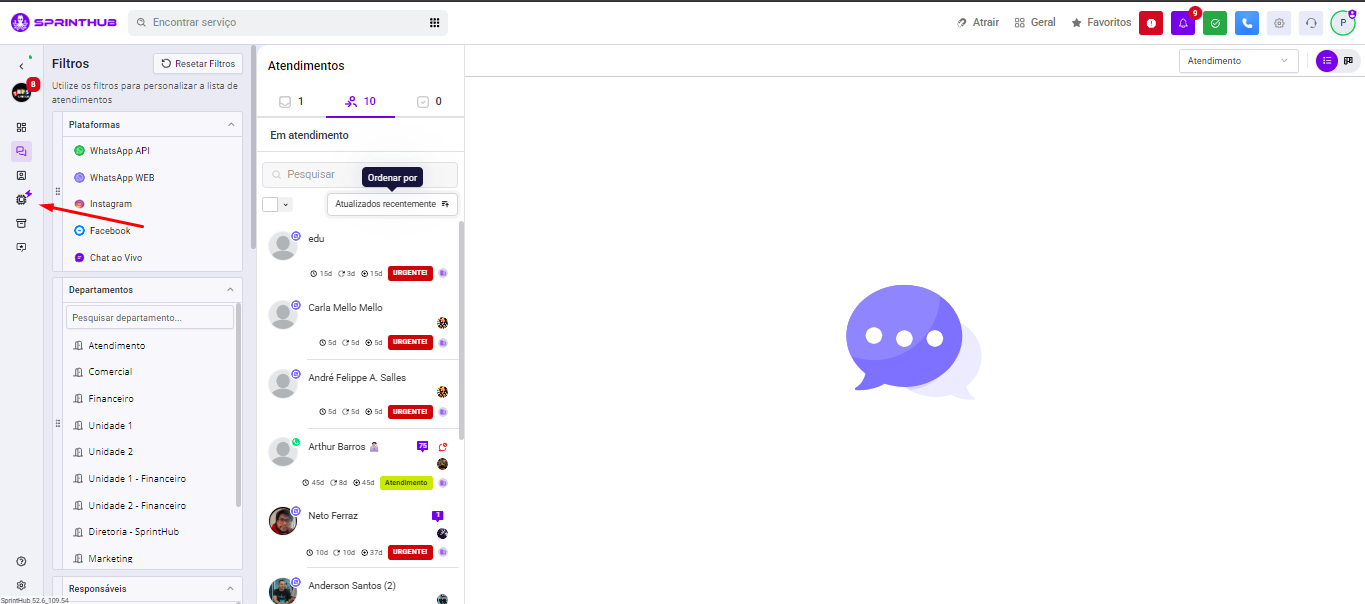
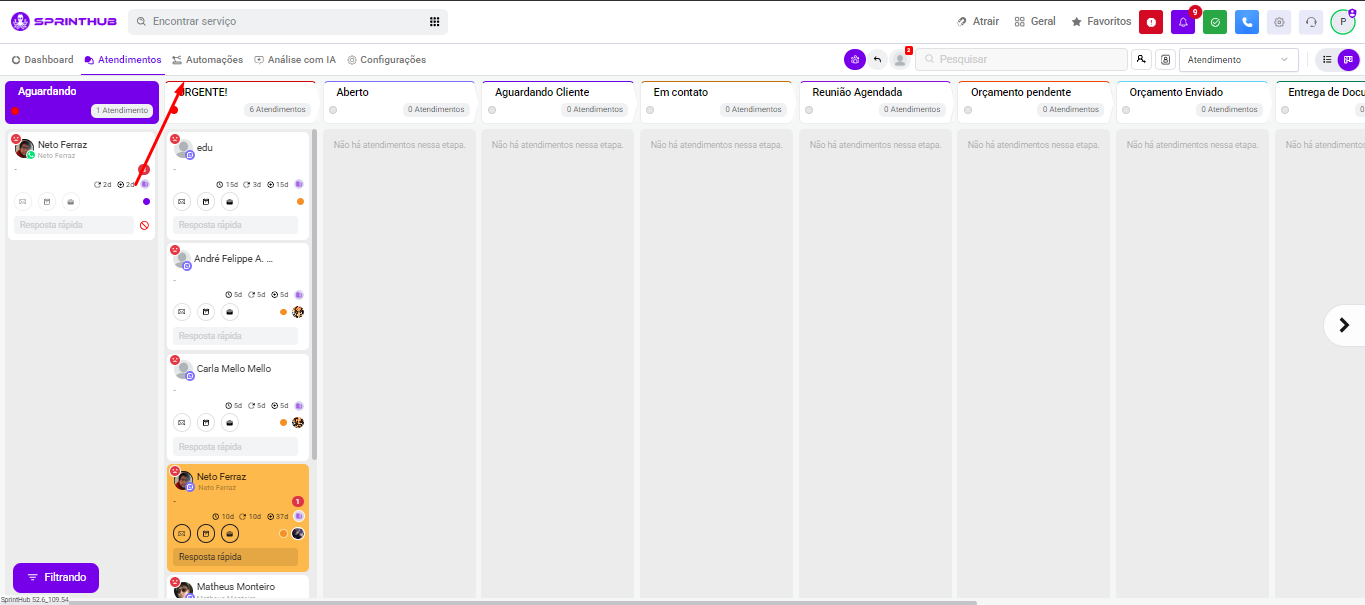
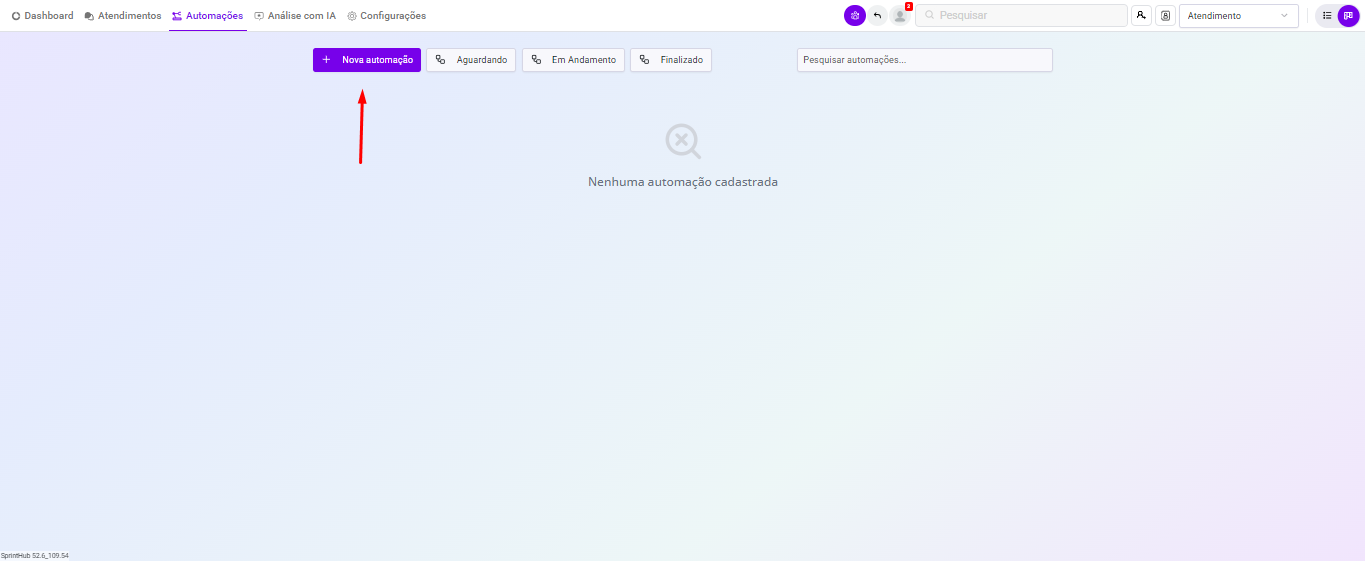
Go to the **SAC 360º** (use the "Menu" or search by name). Then, access the section **Automations** and click on **+ New Automation**.
Entering SAC
Accessing via Kanban mode
Accessing via list mode
Creating the automation
#### 2. Configure the automation
Fill in each field as follows:
**Title** Give it a descriptive name, for example: *"Transfer support due to agent inactivity"*.
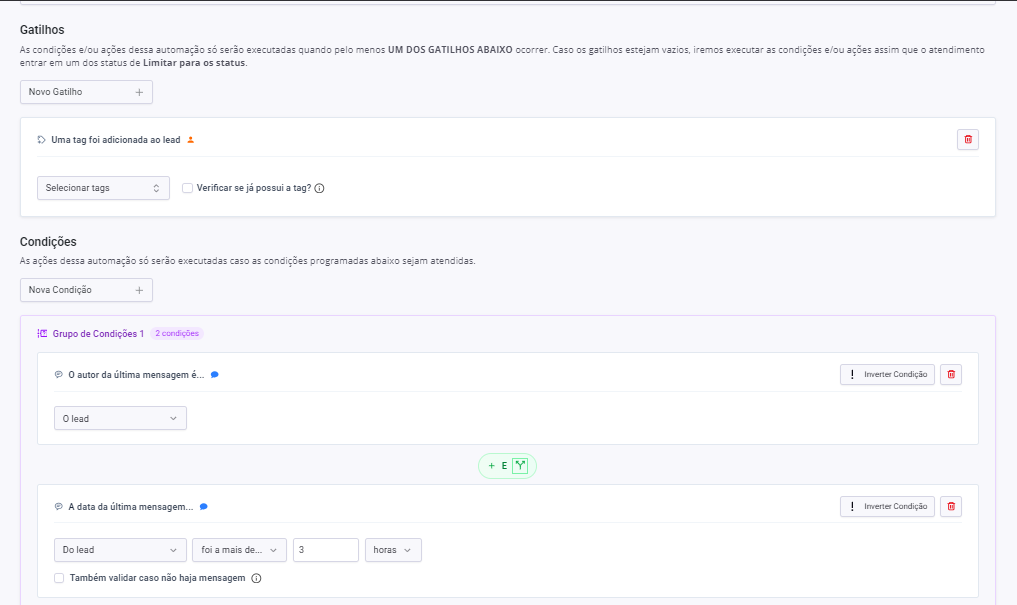
**Trigger** Choose the event that triggers the automation. Example: *"A tag was added to the lead"* — but you can use the trigger that best fits your flow.
**Conditions** Combine the following conditions to identify stalled cases:
* **"The author of the last message is"** → select **"The lead"**
* **"The date of the lead's last message"** → set the period (e.g.: more than 2 hours ago, more than 1 day ago)
> 💡 You can combine multiple conditions to more precisely filter which cases will be affected.
**Action** Select **"Transfer Case"** and configure which agent, team, or department the case will be redirected to.
> ⚙️ There are several transfer destination options — to specific users, departments, or even a support roulette. Configure according to your team's strategy.
Example trigger and conditions
Actions
> 💡 **Tip:** If you want to distribute these cases automatically among several agents, you can combine this automation with a distribution roulette. See the article [**SAC 360º Automation — Support Roulette**](/en/topics/general/sac-360/sac-360-tutorial-videos/sac-wheel-no-lead-service-restrictions.md) to learn how to configure it.
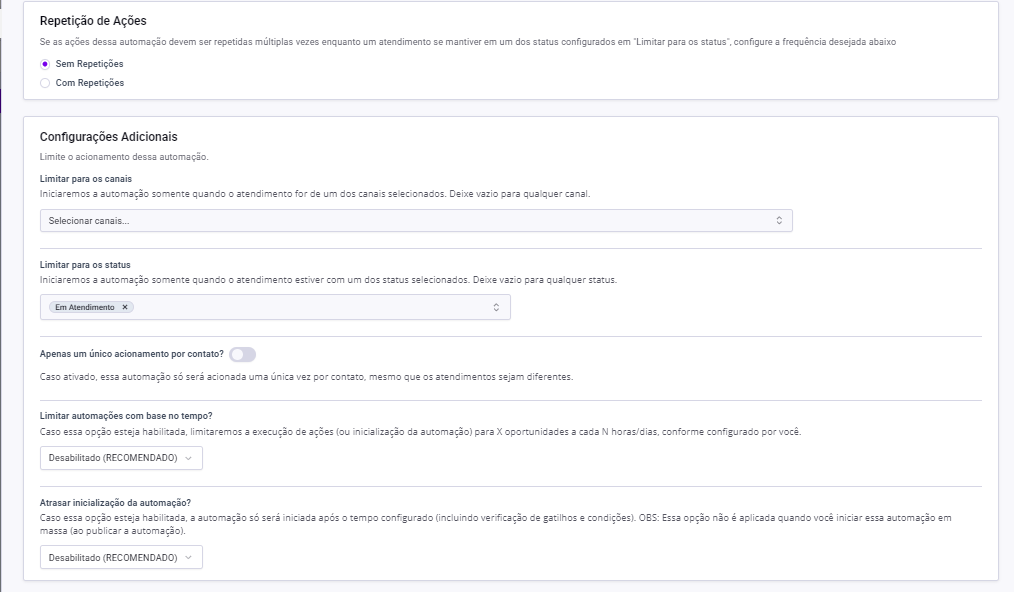
Additional settings
#### 3. Save and activate the automation
After configuring all fields, click on **Save**. Then click the **play** button to activate the automation.
***
### Flow summary
```
Trigger (e.g. tag added)
↓
Condition: owner inactive for X time
↓
Action: transfer case to another agent/department
```
***
### Important tips
* **Set a realistic inactivity time** before transferring — too short may create unnecessary transfers; too long harms the customer experience.
* **Use tracking tags** to measure how many cases were redistributed due to inactivity.
* **Combine with notifications** to alert the original agent or supervisor about the automatic transfer.
* This automation works best when combined with **business hours** configured in the system, preventing transfers outside working hours.
***
Done! Your automation is configured and all stalled cases will be redistributed automatically, leaving no lead waiting.