> For the complete documentation index, see [llms.txt](https://docs.sprinthub.com/llms.txt). Markdown versions of documentation pages are available by appending `.md` to page URLs; this page is available as [Markdown](https://docs.sprinthub.com/en/topics/general/sac-360/sac-360o-automations/sac-360-automation-view-available-to-all-attendants.md).
# SAC 360° Automation - View available to all attendants
In certain situations, it may be necessary to restrict access to a specific ticket so that only other team members can view it, or to allow only the department manager to monitor the team's performance. This can be implemented through the following method:
Inside SprintHub, in all services you can click on **"General" and then "SAC 360°/Omnichannel",** if desired, you can search for **"SAC 360°/Omnichannel".**
Open your **"SAC 360°/Omnichannel"** and then Automation
Create an Automation without condition
**Title:** It would be the name you want to give the automation.
**Trigger:** Add the trigger to start the automation, setting the option **"The lead sends a message"** where you define any message, second trigger with the option **" The responsible agent for the service is updated"** leaving it blank for all users.
Define a permission action
**Action:** Define the action to **" Change access permissions for the Lead"** to be able to grant access to the Lead, choose the best option you want to allow from the **"Access Type",** if desired, you can include or not include the Lead owner.
\
*"Remember: The automation will remove all permissions from all tickets that send a message or that have a ticket with updated owner*.
Choosing the **"Access Type"** Simple, just leave the **"User"** and **" Department"** fields empty.
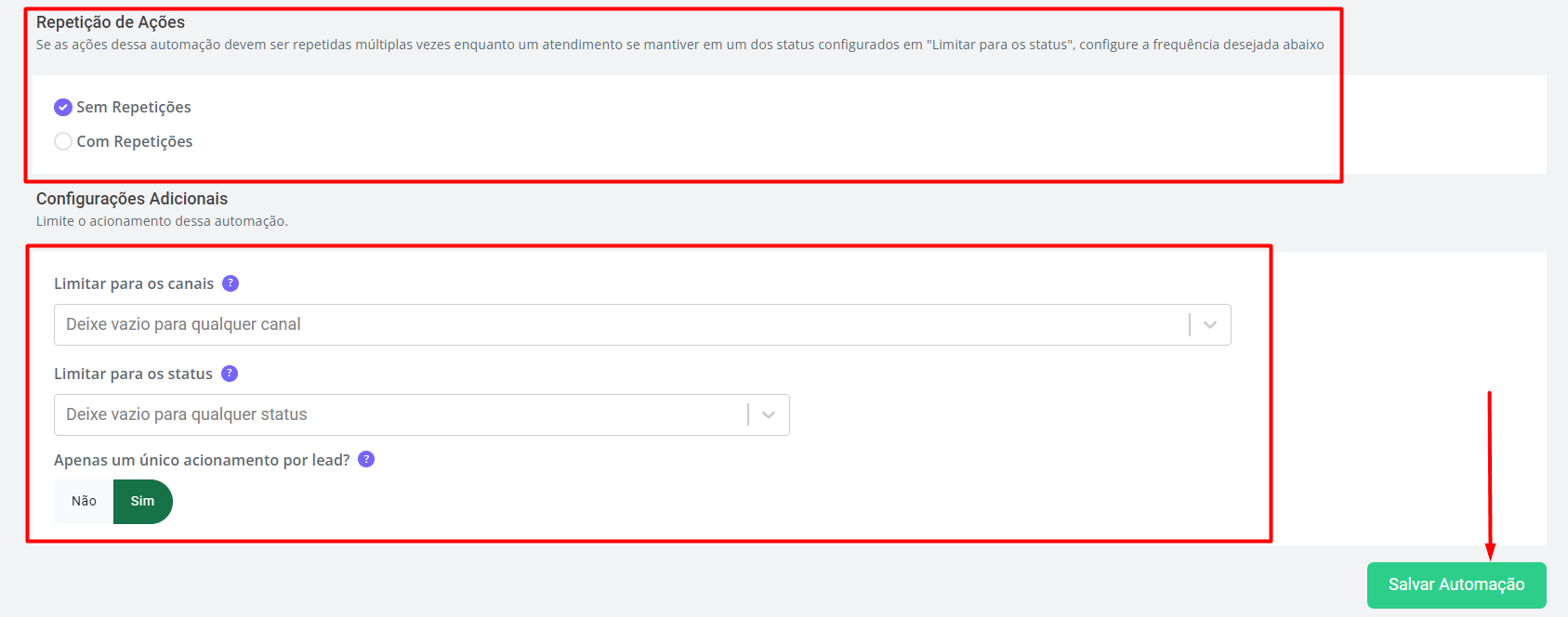
**Action Repetition: Determining whether you would like repetitions to occur while the ticket remains in one of the "Configured Status" in " Limit for Status".**
**Limiting the channels you want to link and only a single trigger per Lead.**
By following the step by step, the Automation is ready.
---
# Agent Instructions
This documentation is published with GitBook. GitBook is the documentation platform designed so that both humans and AI agents can read, navigate, and reason over technical content effectively. Learn more at gitbook.com.
## Querying This Documentation
If you need additional information that is not directly available in this page, you can query the documentation dynamically by asking a question.
Perform an HTTP GET request on the current page URL with the `ask` query parameter, and the optional `goal` query parameter:
```
GET https://docs.sprinthub.com/en/topics/general/sac-360/sac-360o-automations/sac-360-automation-view-available-to-all-attendants.md?ask=&goal=
```
`ask` is the immediate question: it should be specific, self-contained, and written in natural language.
`goal` is optional and describes the broader end goal you are ultimately trying to accomplish on behalf of the user. GitBook uses it to tailor the answer towards what is most useful for that goal.
The response will contain a direct answer to the question and relevant excerpts and sources from the documentation.
Use this mechanism when the answer is not explicitly present in the current page, you need clarification or additional context, or you want to retrieve related documentation sections.