> For the complete documentation index, see [llms.txt](https://docs.sprinthub.com/llms.txt). Markdown versions of documentation pages are available by appending `.md` to page URLs; this page is available as [Markdown](https://docs.sprinthub.com/en/topics/general/sac-360/sac-360-common-questions/sac-360o-transferring-support-case-lunch-break.md).
# SAC 360º - Transferring Support Case - Lunch Break
### What is this setting?
During lunch hours, agents are unavailable — but leads continue sending messages. To prevent these conversations from going unanswered, you can create an automation that detects when the lead sends a message during this period and automatically transfers the conversation to another available user.
### How does the logic work?
The automation combines two simultaneous conditions to act accurately:
* The **Responsible** of the conversation is an agent who is on lunch break
* The **current time** is within the configured lunch window
When both are true and the lead sends a message, the conversation is redirected to another agent in the queue.
```
Lead sends a message
↓
Is the responsible agent on lunch? And is the time within the interval?
↓ (both true)
Transfer to next available agent in sequence
```
### Step by step
#### 1. Access SAC 360º and create a new automation
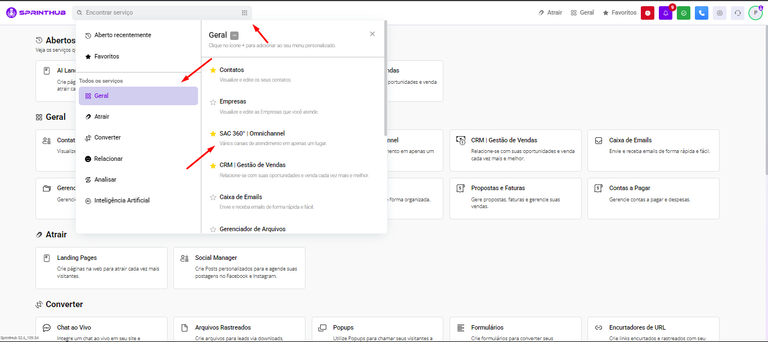
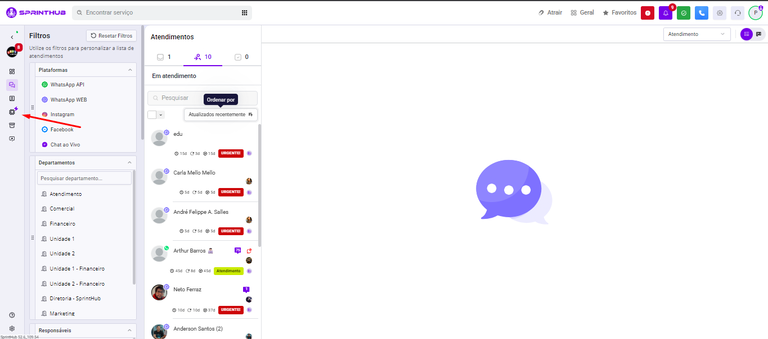
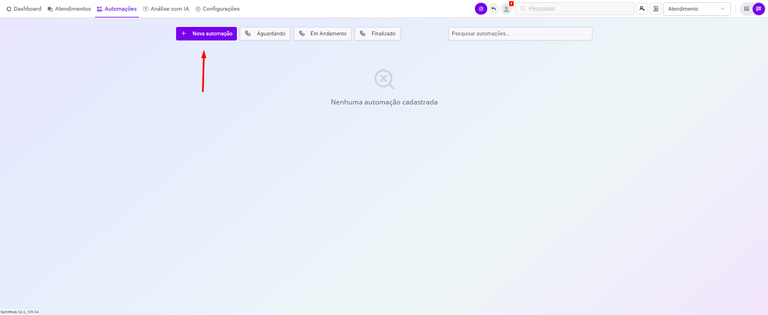
Go to the **SAC 360º** (use the "Menu" or search by name). Then, access the section **Automations** and click on **+ New Automation**
Entering SAC
Accessing automations
Creating the automation
#### 2. Configure the automation
Fill in each field as follows:
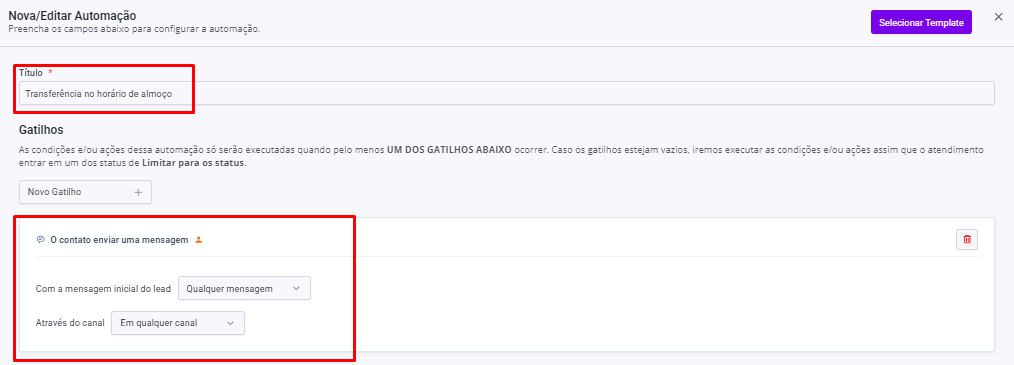
**Title** Give it a descriptive name, for example: *"Lunch-hour transfer — \[Agent name]"*.
**Trigger** Select **"The lead sent a message"**. This way, the automation checks the conditions every time the lead sends any message during the interval.
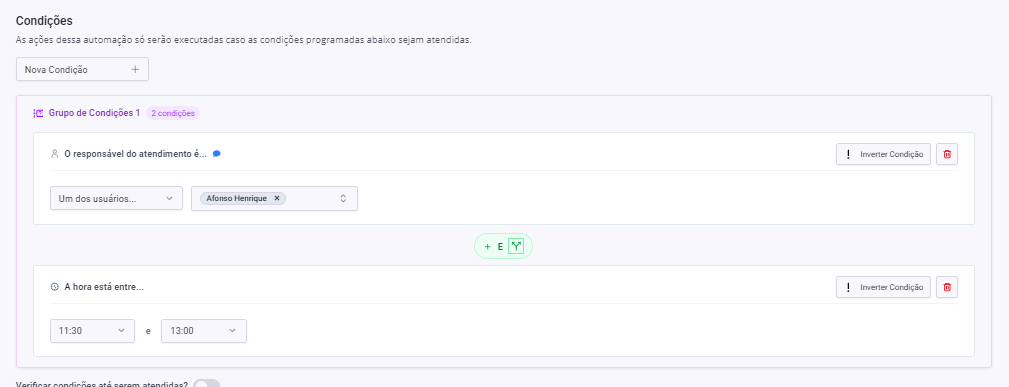
**Conditions** Combine the following conditions to identify conversations during lunch hour:
* **"The conversation owner is"** → select the agent who will be on lunch break
* **"The time is between"** → set the lunch interval (e.g., from 12:00 PM to 1:00 PM)
> 💡 If the team has staggered lunch breaks, create a separate automation for each agent with their respective time interval.
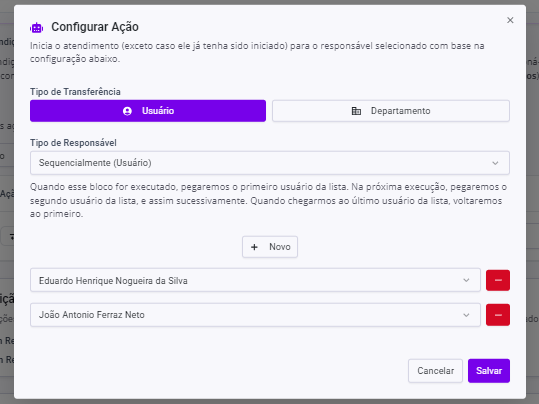
**Action** Select **"Transfer conversation"** and set it to **Sequentially — User**. Click **New** and specify the agents who will receive conversations during this period, in the desired priority order.
> ⚙️ Sequential distribution ensures that conversations are split among available agents, and not always directed to the same one.
**Save** Click on **Save**. The automation will already be active and working for the next conversations that come in during the configured time.
Title and Trigger
Conditions
Action
Action setup
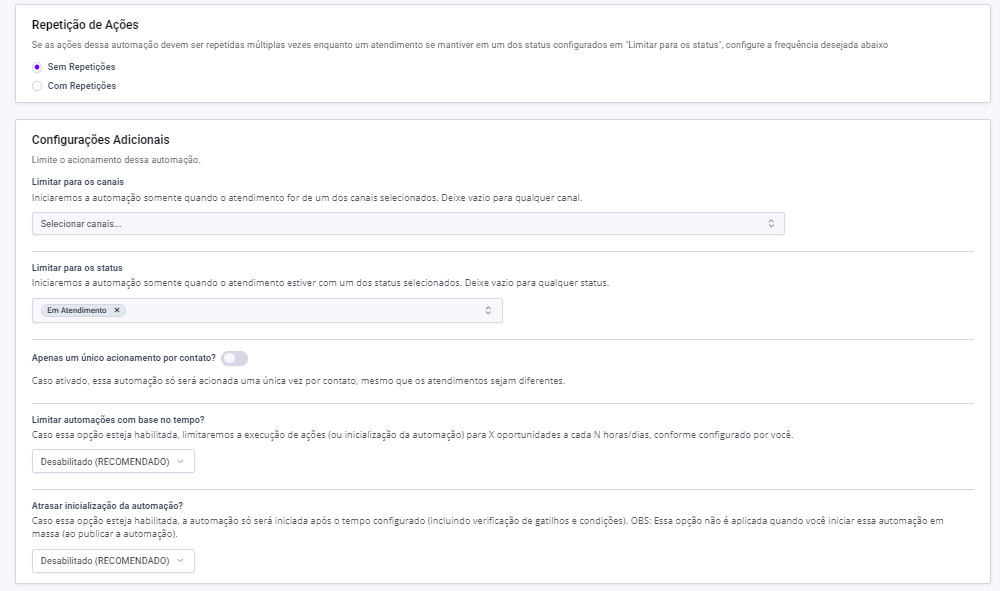
Additional settings
**Save** Click on **Save**. The automation will already be active and working for the next conversations that come in during the configured time.