# SAC 360º - Transferring Case - Lunch Time
### What is this setting?
During lunch hours, agents are unavailable — but leads keep sending messages. To prevent these inquiries from going unanswered, it is possible to create an automation that detects when the lead sends a message during this period and automatically transfers the inquiry to another available user.
### How does the logic work?
The automation combines two simultaneous conditions to act accurately:
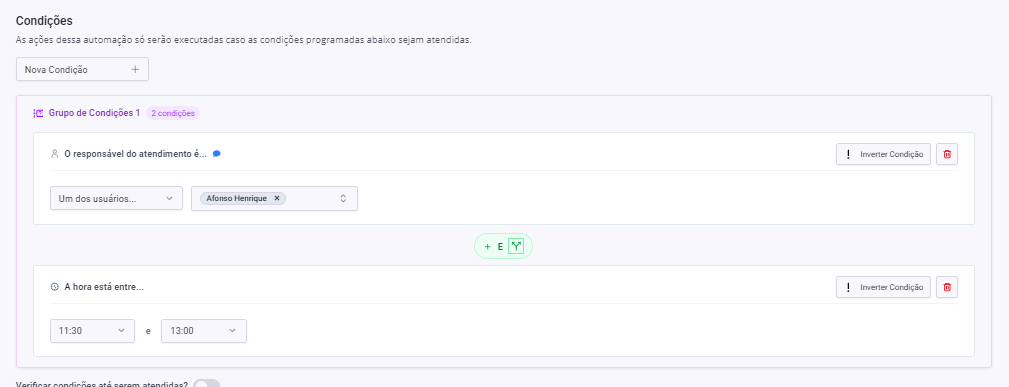
* The **owner** of the inquiry is an agent who is on lunch break
* The **current time** is within the configured lunch window
When both are true and the lead sends a message, the inquiry is redirected to another agent in the queue.
```
Lead sends a message
↓
Is the owner the agent on lunch break? And Is the time within the interval?
↓ (both true)
Transfer to the next available agent in sequence
```
### Step by step
#### 1. Access SAC 360º and create a new automation
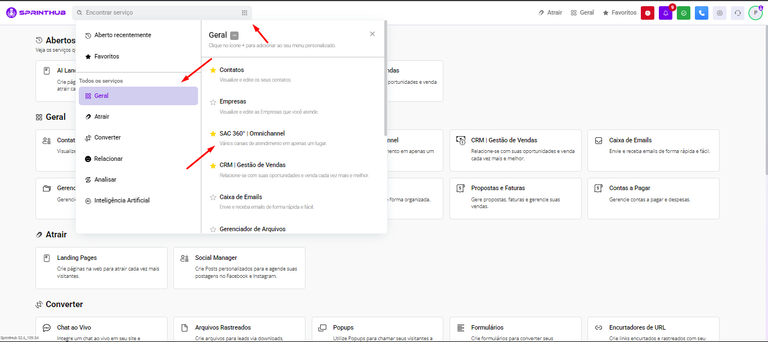
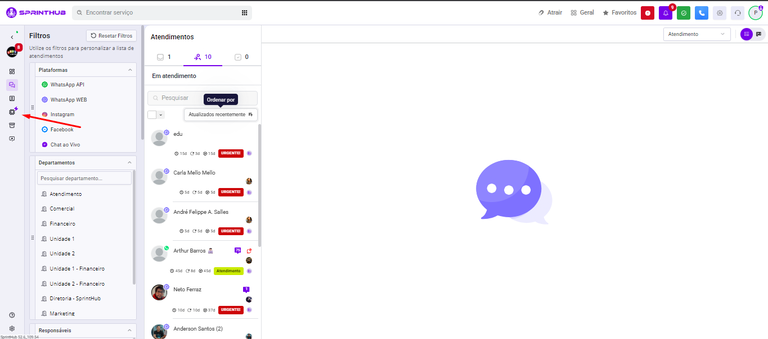
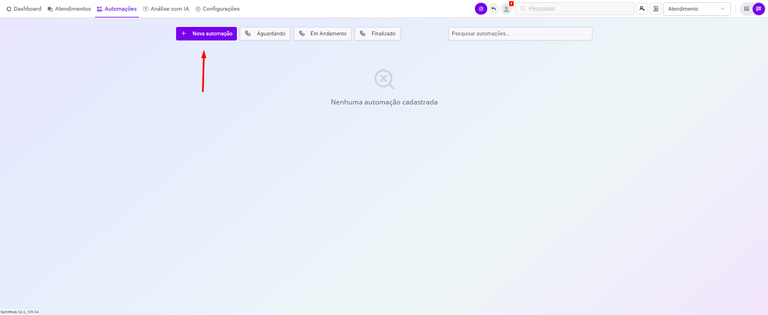
Go to **SAC 360º** (use the "Menu" or search by name). Then, go to the **Automations** section and click **+ New Automation**
Entering SAC
Accessing automations
Creating the automation
#### 2. Configure the automation
Fill in each field as below:
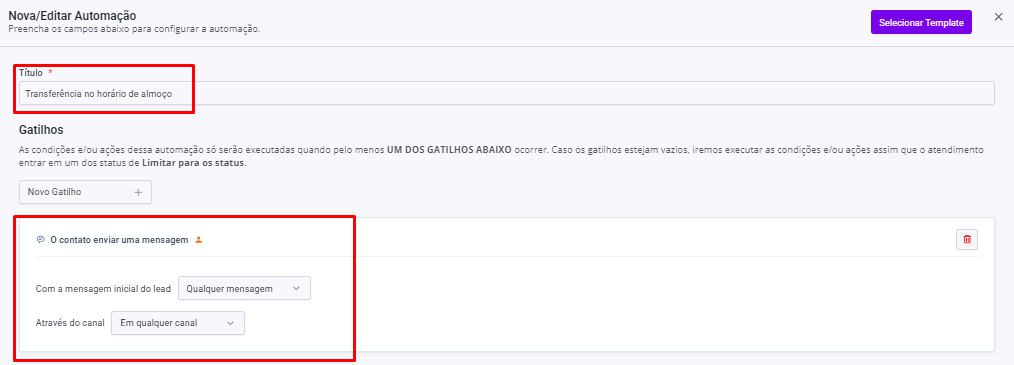
**Title** Give it a descriptive name, for example: *"Lunch break transfer — \[Agent name]"*.
**Trigger** Select **"The lead sent a message"**. This way, the automation checks the conditions every time the lead sends any message during the interval.
**Conditions** Combine the following conditions to identify inquiries during lunch hours:
* **"The owner of the inquiry is"** → select the agent who will be on lunch break
* **"The time is between"** → define the lunch interval (e.g., from 12:00 PM to 1:00 PM)
> 💡 If the team has staggered lunch breaks, create a separate automation for each agent with their respective time interval.
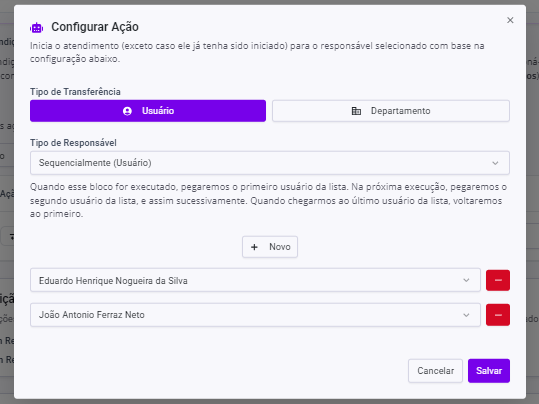
**Action** Select **"Transfer inquiry"** and configure it to **Sequentially — User**. Click **New** and specify the agents who will receive inquiries during this period, in the desired order of priority.
> ⚙️ Sequential distribution ensures that inquiries are shared among available agents, rather than always being sent to the same one.
**Save** Click **Save**. The automation will already be active and working for the next inquiries that come in during the configured time.
Title and Trigger
Conditions
Action
Action setup
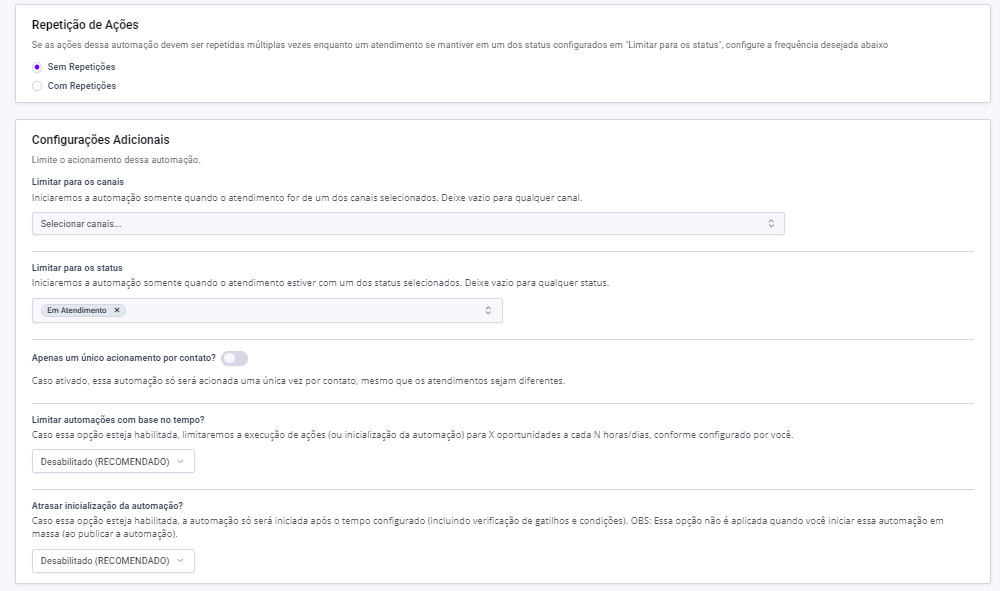
Additional settings
**Save** Click **Save**. The automation will already be active and working for the next inquiries that come in during the configured time.