> For the complete documentation index, see [llms.txt](https://docs.sprinthub.com/llms.txt). Markdown versions of documentation pages are available by appending `.md` to page URLs; this page is available as [Markdown](https://docs.sprinthub.com/en/topics/general/contacts/leads-common-questions/contacts-bulk-actions.md).
# Contacts - Bulk Actions
When your operation grows and you need to update, export, or archive hundreds of leads at once, Sprinthub offers a simple workflow for selecting and applying bulk actions on the screen of **Contacts**. In this article, we will show you how to:
1. Select multiple contacts (by page or entire database)
2. Access the bulk actions menu at the bottom of the screen
3. Explore the main actions and advanced options
***
#### 1. Selecting multiple contacts
**1.1 Page selection**
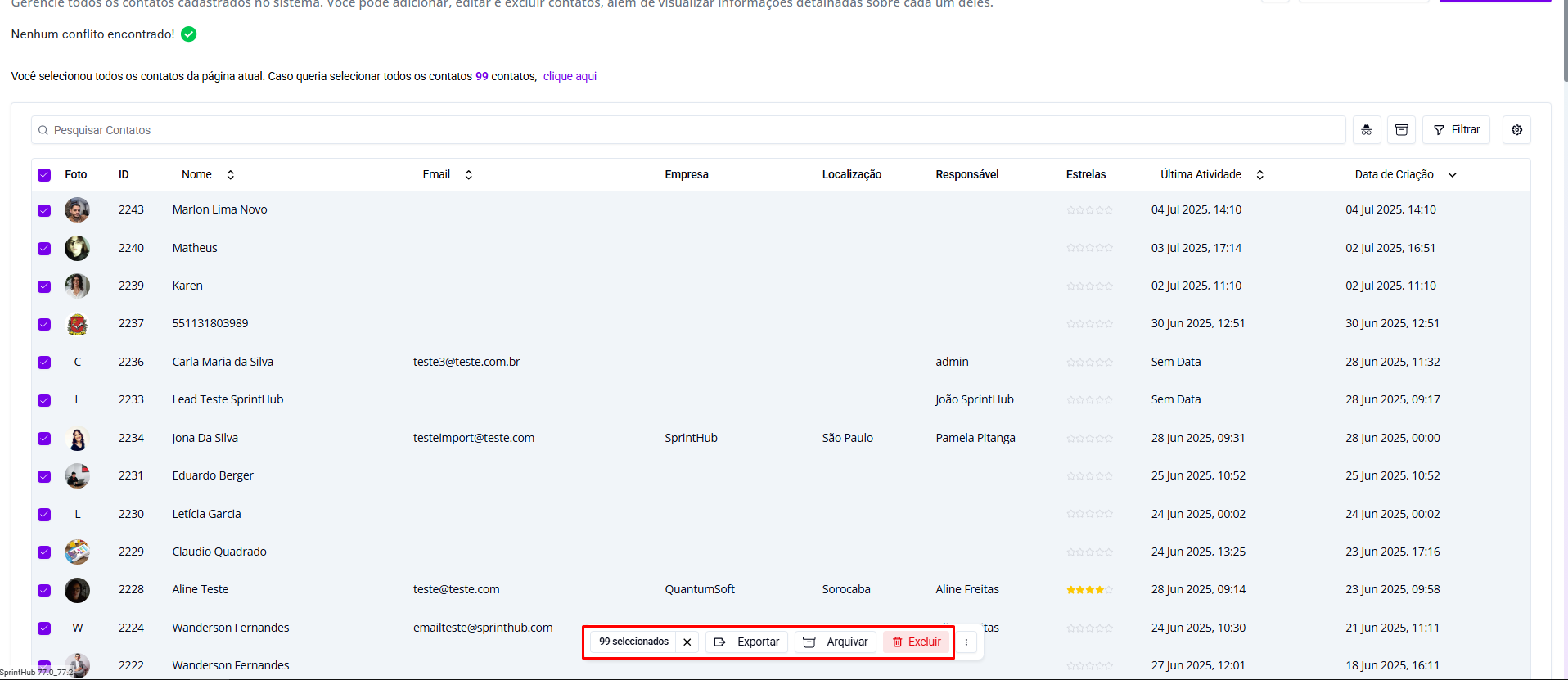
When entering the screen of **Contacts**, you will see, to the left of each row, a checkbox. To quickly select all contacts listed on the current page:
1. Click the header checkbox (above the photos) – this marks all visible records.
2. The interface will immediately display, in the footer, a badge indicating how many contacts on the page are selected.
**1.2 Selecting the entire database**
If you want to apply an action to **all** registered leads (and not just those shown on the current page):
1. After checking the header checkbox, a message will appear above the list:
> “You selected all contacts on the current page. If you want to select all contacts (X), click here.”
2. Just click **“click here”** to expand the selection and include **all** the contacts database in your system.
3. The selection badge in the footer will be updated to reflect the total number of selected records.
***
#### 2. Accessing the bulk actions menu
As soon as at least one contact is selected, a fixed bar appears at the bottom of the list with:
* **Export**
* **Archive**
* **Delete**
* A button with **three dots (…)** that reveals additional actions
This menu ensures the most common actions are always at hand, without needing to navigate to another screen.
***
#### 3. Exploring the available actions
**3.1 Main actions**
* **Export**: generates a CSV/XLS file with all visible fields of the selected contacts.
* **Archive**: moves the contacts to the archive, keeping the history but freeing up space in the active list.
* **Delete**: permanently deletes the records (use with caution).
**3.2 Extra actions (three dots)**
By clicking the **…**, you find batch automation and segmentation operations, such as:
* Add or remove from an automation flow
* Include or exclude from segments (tags)
* Change the person responsible for support
* Adjust access permissions
* Mark as “Do not contact”
These options make it easier to manage large volumes of contacts without having to edit record by record.
***
#### Conclusion
The module of **Bulk Actions** in Sprinthub is a powerful tool for streamlining database cleanup, segmentation, and lead management processes. With a few clicks you can select by page or by the entire database, access a streamlined menu with the most commonly used actions, and also find advanced options through the three dots. Try combining filters and automations to make your funnel more organized and efficient!
If you need help creating a more detailed tutorial about automation flows or specific segmentation, just ask.