> For the complete documentation index, see [llms.txt](https://docs.sprinthub.com/llms.txt). Markdown versions of documentation pages are available by appending `.md` to page URLs; this page is available as [Markdown](https://docs.sprinthub.com/en/topics/artificial-intelligence/ai-agents/ai-agents-execute-automations/ai-agents-automatically-qualifying-leads-with-ai.md).
# AI Agents - Automatically Qualifying Leads with AI
Automating lead qualification with Copilot from the AI's first-contact responses.
{% hint style="info" %}
The automation presented in this tutorial assumes that the AI Agent follows a standard service flow, in which it collects information and records it in the corresponding lead fields during the first contact.
{% endhint %}
## Fields that will be considered
In this example, three criteria will be considered for lead qualification: **business segment**, **number of employees** and **urgency level**.\
\
Classification will be as follows:
* **High**: Relevant segment, more than 10 employees, and immediate urgency.
* **Medium**: Meets two of the criteria or shows potential, even with a medium timeframe.
* **Low**: Is only researching, has few employees, and does not show urgency.
Lead fields.
## Setting up 360° SAC automation
According to the trigger, lead qualification will be performed when the AI Agent moves the service to the stage **"\[AI - First Contact] Completion"**.
At this moment, two actions will be executed:
1. **Execute task with Copilot**\
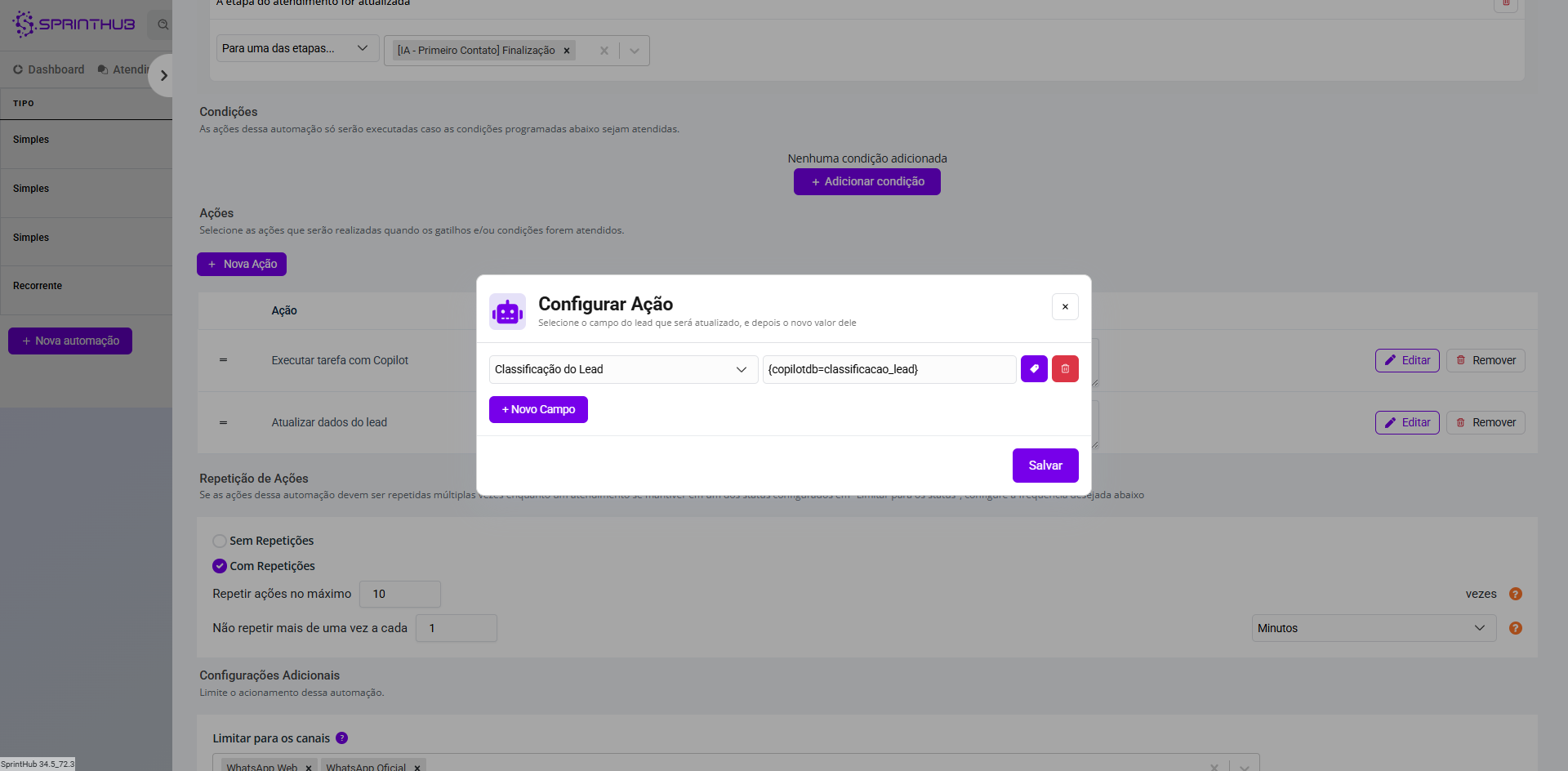
This action will generate the lead classification and save the result in the token `{copilotdb=classificacao_lead}`, as defined in the automation key.
> Note: In this case, the task return must contain **only one word**, corresponding exactly to one of the predefined values in the field **"Lead Classification"**, which is of type **selector**.
2. **Update lead data**\
Next, the second action will save the value returned by Copilot directly in the corresponding lead field, using the action **"Update lead data"**.
Action 'Execute task with Copilot'.
Action 'Update lead data'.
## Testing automation
To verify whether the automation is working correctly, it is possible to consult the lead history. There, you can check whether the actions were executed as expected or whether an error occurred during the process.
Lead history.
Qualified lead.
---
# Agent Instructions
This documentation is published with GitBook. GitBook is the documentation platform designed so that both humans and AI agents can read, navigate, and reason over technical content effectively. Learn more at gitbook.com.
## Querying This Documentation
If you need additional information that is not directly available in this page, you can query the documentation dynamically by asking a question.
Perform an HTTP GET request on the current page URL with the `ask` query parameter, and the optional `goal` query parameter:
```
GET https://docs.sprinthub.com/en/topics/artificial-intelligence/ai-agents/ai-agents-execute-automations/ai-agents-automatically-qualifying-leads-with-ai.md?ask=&goal=
```
`ask` is the immediate question: it should be specific, self-contained, and written in natural language.
`goal` is optional and describes the broader end goal you are ultimately trying to accomplish on behalf of the user. GitBook uses it to tailor the answer towards what is most useful for that goal.
The response will contain a direct answer to the question and relevant excerpts and sources from the documentation.
Use this mechanism when the answer is not explicitly present in the current page, you need clarification or additional context, or you want to retrieve related documentation sections.