> For the complete documentation index, see [llms.txt](https://docs.sprinthub.com/llms.txt). Markdown versions of documentation pages are available by appending `.md` to page URLs; this page is available as [Markdown](https://docs.sprinthub.com/en/topics/analyze/integrated-webhooks/integrated-webhooks-common-questions/integrated-webhooks-how-to-connect-a-google-sheets-spreadsheet-to-sprinthub.md).
# Integrated Webhooks - How to connect a Google Sheets spreadsheet to Sprinthub
In this article, we will explore how to connect a Google Sheets spreadsheet to Sprinthub using webhooks, making data transfer automatic and instant between these platforms.
### Steps **to Connect a Google Sheets Spreadsheet to Sprinthub via Webhooks to send data to Sprinthub**
Here are the basic steps to set up this integration:
#### Pre**paration of the Google Sheets Spreadsheet:**
* Make sure the spreadsheet contains the necessary data to feed Sprinthub, such as lead details like Name, Lastname, email, and WhatsApp.
#### C**onfiguration of the Webhook in Sprinthub:**
* Access Sprinthub and go to the Webhook settings; for the integration, we must leave it as follows:
* First, it is necessary to create the keyword to connect the webhook, for example:
```javascript
'https://sprinthub-api-master.sprinthub.app/api/hook/google-sheets?i=g4&access_token=tdtcX1Hrw5MmTzQiLVA8_AtMA6H-FYA-uM_gnoYPVLS25A4VNT'
```
* Request body: What you want to receive from your spreadsheet, in our case Name, lastname, email, and whatsapp.
{% hint style="info" %}
Remember to include the identifiers so there are no duplicate leads.
{% endhint %}
* Automatic lead creation enabled with the tokens to perform the creation.
#### Configura**tion of the Google Sheets Spreadsheet:**
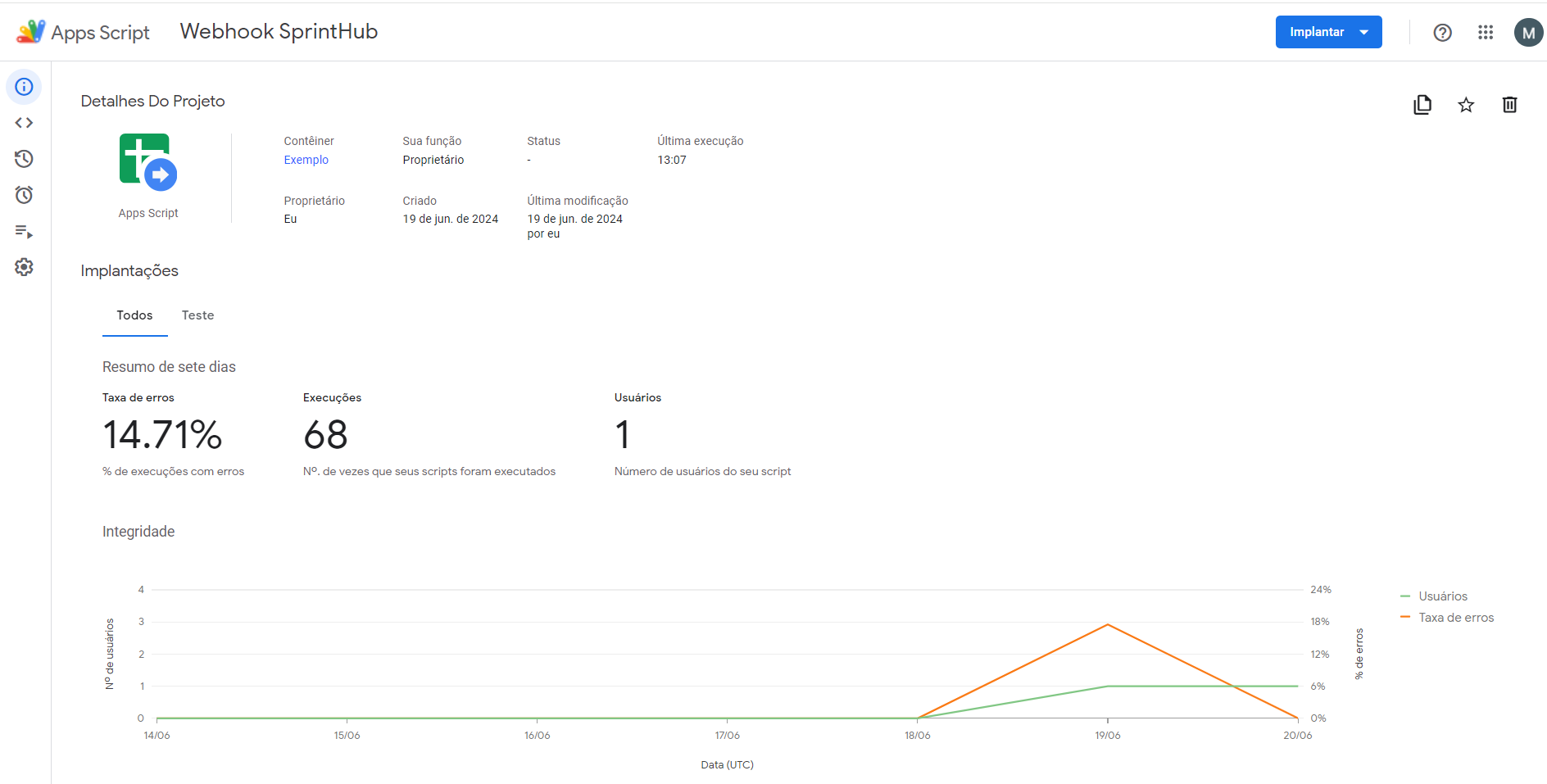
* Open the spreadsheet and navigate to "Extensions" > "Apps Script". A screen will open where you can put your script for how the data will be sent to the webhook.
* In the Script Editor, write a function that will be triggered whenever a new row is added to the spreadsheet. This function can be configured to send a POST to the Sprinthub webhook URL, with the relevant project data.
Below is the example code:
function enviarDadosParaWebhook() {
  var url = 'https://sprinthub-api-master.sprinthub.app/api/hook/google-sheets?i=g4&access_token=tdtcX1Hrw5MmTzQiLVA8_AtMA6H-FYA-uM_gnoYPVLS25A4VNT';

  var planilha = SpreadsheetApp.getActiveSpreadsheet();
  var abaAtiva = planilha.getSheetByName('Leads ');

  if (!abaAtiva) {
    Logger.log('The specified sheet was not found.');
    return;
  }

  var dados = abaAtiva.getDataRange().getValues();

  // Remove the header row
  dados.shift(); // Removes the header

  // Filter empty or incomplete rows
  dados = dados.filter(function(row) {
    // Check if all fields are filled (assuming that name, lastname, email, and whatsapp are in the first four columns)
    return row[0] !== '' && row[1] !== '' && row[2] !== '' && row[3] !== '';
  });

  // Logging for debugging
  Logger.log('Filtered data:', dados);

  // Preparing the data to send in the payload
  var payload = {
    'dados': dados.map(function(row) {
      return {
        'name': row[0],
        'lastname': row[1],
        'email': row[2],
        'whatsapp': row[3]
      };
    })
  };

  // Logging for debugging
  Logger.log('Sent payload:', payload);

  var options = {
    'method' : 'post',
    'contentType': 'application/json',
    'payload' : JSON.stringify(payload),
    'muteHttpExceptions': true
  };
  }
#### Testing and Debugging
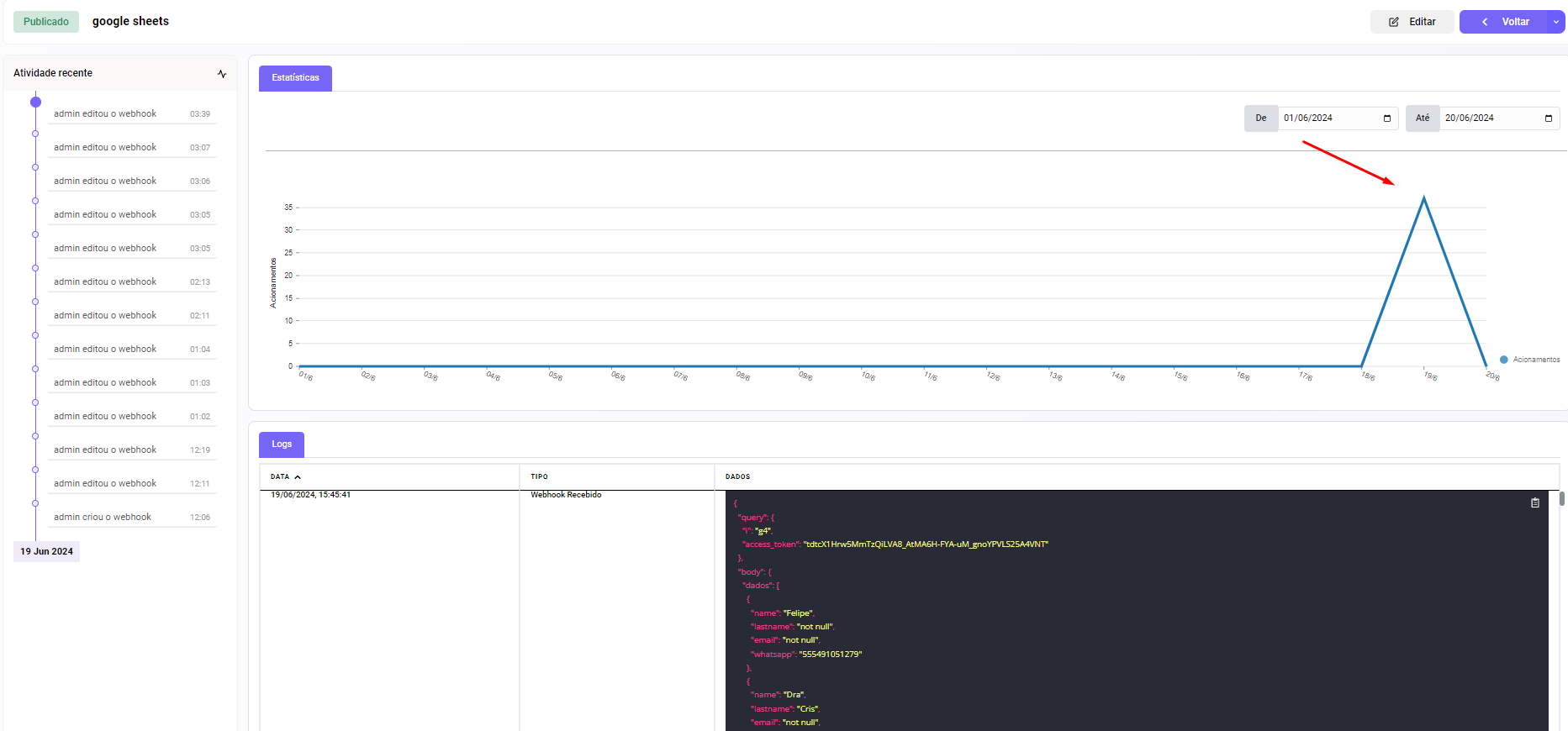
* After testing and debugging the integration, and verifying that everything is correct. Run it and check whether the call was made in Sprinthub.
* With the webhook successfully connected, we can add triggers, where editing the spreadsheet will be sent to the files for the webhook:
{% hint style="warning" %}
Disable automatic saving; with it enabled, any row added will be POSTed to the webhook.
{% endhint %}
* Be attentive to adjustments or improvements that may be necessary based on practical use.
**Conclusion**
Integrating a Google Sheets spreadsheet with Sprinthub through webhooks not only simplifies the workflow, but also improves accuracy and efficiency in project management. With the proper automation, you can transform the way your teams collaborate and carry out tasks, making the most of the capabilities of these powerful productivity and management tools.
---
# Agent Instructions
This documentation is published with GitBook. GitBook is the documentation platform designed so that both humans and AI agents can read, navigate, and reason over technical content effectively. Learn more at gitbook.com.
## Querying This Documentation
If you need additional information that is not directly available in this page, you can query the documentation dynamically by asking a question.
Perform an HTTP GET request on the current page URL with the `ask` query parameter, and the optional `goal` query parameter:
```
GET https://docs.sprinthub.com/en/topics/analyze/integrated-webhooks/integrated-webhooks-common-questions/integrated-webhooks-how-to-connect-a-google-sheets-spreadsheet-to-sprinthub.md?ask=&goal=
```
`ask` is the immediate question: it should be specific, self-contained, and written in natural language.
`goal` is optional and describes the broader end goal you are ultimately trying to accomplish on behalf of the user. GitBook uses it to tailor the answer towards what is most useful for that goal.
The response will contain a direct answer to the question and relevant excerpts and sources from the documentation.
Use this mechanism when the answer is not explicitly present in the current page, you need clarification or additional context, or you want to retrieve related documentation sections.